
Video Resources
Click through for a hands-on experience:
Overview
Connecting INVENTORY, Attendance, and Reservation functionality allows System Administrators to utilize INVENTORY module functionality for a wider variety of housing situations, including night-by-night shelters. Clarity users can then use the Units/Beds configured in INVENTORY for Attendance and Reservation services.
This article contains the following sections:
Attendance Module Management
Users can reserve units/beds configured in INVENTORY for client services managed in the Attendance Module.
- INVENTORY unit/bed attendance can be managed in the Attendance Module for active units/beds where there is an active Daily Attendance Service connected.
Reservations for units/beds can be managed in the Attendance Module for active units/beds that have a site/building/unit where:
- Enable Reservations = ON
- There is an active Daily Attendance Service connected.
Attendance Module services will appear the same for users. When a user navigates to Attendance > Edit for a service connected to a site/building/unit, the tables show:
- Unit/Bed instead of Slot.
- The column shows [Unit_name: Bed_name] instead of the slot number.
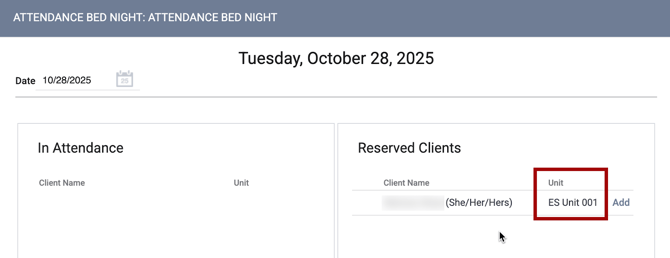
When a user navigates to Attendance > Reservation for a service connected to a site/building/unit, the Reservation page shows:
- a new filter option to select a specific program.
- The picklist includes:
- "Any Program" (selected by default)
- All programs at the current agency that are enabled in the Program Options section of this service.
- When the user selects a specific program, the system shows those units/beds from all different agencies that are connected to this program.
- The picklist includes:
- applicable units/beds configured in INVENTORY. Units/Beds must be:
- Active for the reservation date selected.
- A site/building/unit connected to the Attendance Service where the reservation date falls into the connection period.
- Units/Beds are grouped by Building, with an option to collapse and expand the units/beds in each building.
- The label above each group of units/beds is the Building Name.
- "Units/Beds" will be collapsed by default when there are 5 or more buildings connected to a program.
When a user selects a unit/bed, the Make Reservation section shows on the right side of the page. This section will reference units/beds instead of “slots” and “openings.”
- Reservations will use "Date" and "Time" to account for a unit/bed’s status and availability.
- All attendance services connected to INVENTORY-based reservation dates must be within the service connection dates
- If the user selects a date outside the service connection dates, the system will hide the program search bar and show "Slots" instead of units/beds.
- Just like current functionality, when a client is marked No Show for a reserved unit/bed, the unit/bed becomes available for a new reservation. The remaining days of the original client’s reservation remain in "Pending" status.
Attendance and Reservation Services
The ability to manage daily attendance services and reservations for service-connected housing INVENTORY units/beds is now available in the client’s global-level SERVICES tab or program-level Services tab.
Attendance Services (without Reservations)
When a service is created from the global-level SERVICES tab or within the program-level Services tab, the housing INVENTORY unit/bed can be connected when there is an active Daily Attendance Service connected.
- These services appear the same for users, but with units/beds. When a user adds the service item and there is a connected site/building/unit, the Services page shows the same options as the Program > Unit/Beds tab.
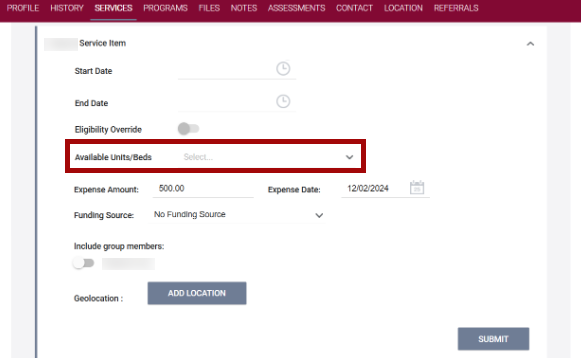
- The Available Units/Beds picklist only includes units/beds that are available and active for the dates selected.
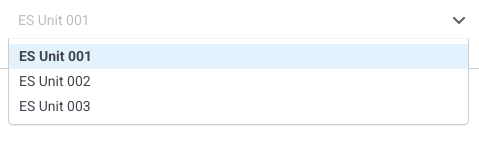
- If there are no available/active beds, the system shows the message "No options available."

Reservation Services
When a reservation service is created from the SERVICES tab, or within a program's Services tab, the actual housing inventory unit/bed can be reserved when:
- There is an active Daily Attendance Service connected
- Enable Reservations = ON
These services appear just as they do now, but instead of “Slots,” the system shows configured units/beds. When a user expands the service item for a service connected to a site/building/unit, the Services page shows:
- applicable units/beds configured in INVENTORY. Units/Beds must be:
- Active for the dates selected
- A site/building/unit with the Attendance Service connected
- Reservations currently enabled.
- Reservation options including Start Date, Start Time, and the number of days to reserve
- The "Preview Reservation" button allows the user to see and adjust each reserved date
- Each reserved date and associated details
- The "Confirm" option.
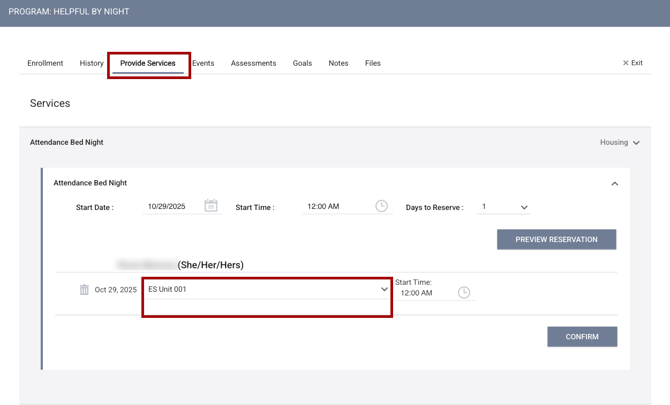
When the user provides a service within the client program, the system will automatically create an occupancy for the same period. If an occupancy has already been created within this program with dates that overlap the service period, the user will get an error message:
"Occupancy already exists for this timeframe. Please update the occupancy or service dates and try again."
Latest Daily Arrival Times
When the user selects "Preview Reservation," the Latest Daily Arrival Time can be set for each reserved date.
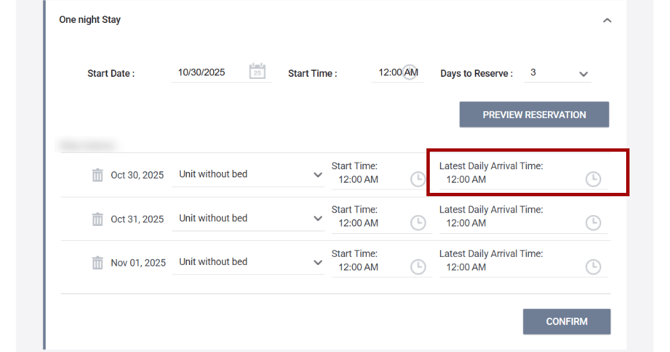
The "Default Latest Daily Arrival Time" will automatically populate when a reservation is created, and the user can adjust the time for each reservation night if needed.
There is a visual cue to indicate the latest time a client is expected to arrive in the following areas:
- The Attendance Module Reservation sidebar includes "Latest Daily Arrival Time" below "Reservation Ends."
- The Latest Daily Arrival Time field only shows when the Enable Daily Arrival Time setting is ON.
- There is an option for the user to edit the time.
- The "Attendance Module Reservation" table in Slot and Calendar View includes the column "Latest Arrival."
- The Latest Arrival column only shows when the Enable Daily Arrival Time setting is ON.
- When the "Latest Arrival Time" is later than the default time, there is a clock icon to the left of the time in the Latest Arrival column.
- The Client History Manage Reservation section includes the column "Latest Arrival."
- The "Latest Arrival" column only shows when the Enable Daily Arrival Time setting is ON.
- If Enable Daily Arrival Time is toggled OFF after a user has created reservations using the "Latest Daily Arrival Time," then the Latest Daily Arrival Time column will no longer show or impact reservations.
- If Enable Arrival Daily Time is toggled back ON, the system will show the "Latest Daily Arrival Time" column again, restoring any values that previously existed for pending reservations.
- The "Latest Daily Arrival Time" can also be edited from this section.
Anywhere the "Latest Daily Arrival Time" is listed, there is an edit symbol to adjust the time. When a user hovers over the time, the edit symbol appears.
Each reservation is automatically marked "No Show" when the "Latest Daily Arrival Time" for the current date is reached.
Referrals
Users can reserve a housing INVENTORY unit/bed when making a direct referral from the client’s Referrals tab. The housing INVENTORY unit/bed can be reserved when a System Administrator has enabled this feature. For more details, please refer to our INVENTORY, Attendance, and Reservation Management article.
The direct referral and reservation appears the same for users, but instead of “Slots,” the system shows available units/beds. When a user toggles Would you like to make a reservation as well? ON and provides a service connected to a site/building/unit, the Refer to Program page shows the following:
- Available units/beds configured in INVENTORY that are:
- Active for the reservation dates selected
- A site/building/unit with the Attendance Service connected
- Reservations currently enabled.
- Reservation options including Start Date, Start Time, and the number of days to reserve
- The "Preview Reservation" button that allows the user to see and adjust each reserved date
- Each reserved date and associated details
- The "Confirm" option.
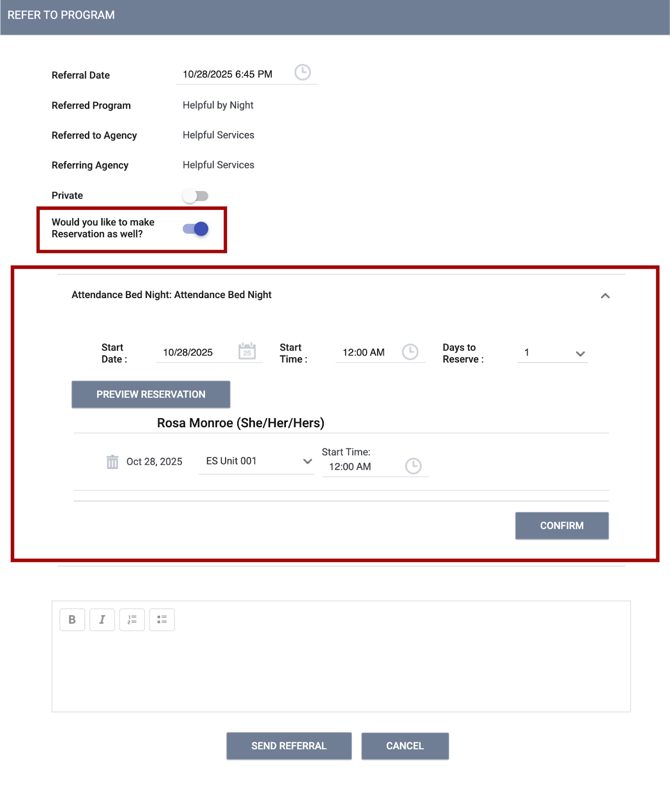
If the user selects a "Reservation Start Date" that doesn’t fall into any connection period of any unit/bed, the system shows "slots" on the page.
When creating a reservation, if some reservation dates have a unit/bed connection, but some reserved days do not, the system shows the slots or units/beds depending on each day.
If a reservation uses slots and units/beds, the system will split the reservation into multiple records, each containing either slots or units/beds. For example:
- The user creates a reservation for the following days:
- 12/10/2024 - bed1
- 12/11/2024 - bed1
- 12/12/2024 - bed2
- 12/13/2024 - slot1
- 12/14/2024 - slot2
- 12/15/2024 - slot1
- After the user selects Confirm, there will be two reservation records on the client history:
- 12/10/2024 - 12/12/2024 and
- 12/13/2024 - 12/15/2024
- Reservation Date and Time will be stored for both – when a user selects a slot and when a user selects a unit/bed.
The "Referral Unit" selected on the Referral page is populated as the Reserved Unit/Bed by default when the workflow includes a Referral to a unit/bed and a Reservation to a unit/bed.
Updated: 02/10/2026