
Overview
Connecting INVENTORY, Attendance, and Reservation functionality allows System Administrators to use INVENTORY module functionality for a wider variety of housing situations, including night-by-night shelters. Clarity users can then utilize the Units/Beds configured in INVENTORY for Attendance and Reservation services.
System Administrators can designate, configure, and manage the INVENTORY module's Units/Beds for use with Attendance and Reservation services. This management includes a core housing inventory field, unit management, and service management.
This article contains the following sections:
- Housing Inventory Core Field Management (Sites)
- INVENTORY Management (Units)
- Service Management (Attendance & Reservations)
- Referrals
Housing Inventory Core Field
A housing inventory core field, the Enable Reservations toggle, is available on the Site, Building, and Unit screens.

Data is inherited down from the highest level where it is available: Site > Building > Unit.
- If Enable Reservations is ON at the Site level, the setting is ON, read-only, and cannot be disabled at the Building or Unit level.
- If Enable Reservations is ON at the Building level, the setting is ON, read-only, and cannot be disabled at the Unit level.
- Enable Reservations can still be adjusted at the Site level; the adjusted site settings will override previously set Building or Unit reservation settings.
- If Enable Reservations is ON at the Unit level, the settings can still be adjusted at the Site and Building level. If settings are adjusted at the Site or Building level, the highest level settings will override previously configured reservation settings.
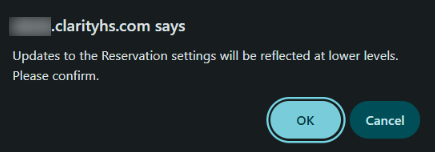
- When a System Administrator saves new settings at a higher level that will override previous settings at one or more lower levels, a warning appears that reads:
“Updates to the Reservation settings will be reflected at lower levels. Please confirm.”
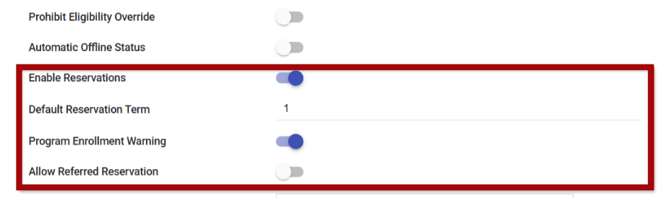
When Enable Reservations is toggled ON, the System Administrator sees additional reservation options:
- Default Reservation Term: Set at 1 day by default
- Program Enrollment Warning: ON by default
- Allow Referred Reservation: OFF by default.
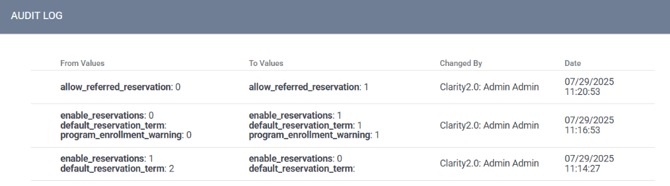
Note: The Program Enrollment Warning setting has changed from a Picklist field with Enabled and Disabled options to a Toggle field. The values are:
- 1 for the Enabled or toggled checkbox
- 0 for the Disabled or untoggled checkbox.
The Default Reservation Term, Program Enrollment Warning, and Allow Referred Reservation settings inherit down from higher levels where the data is available: Site > Building > Unit.
- Details for Enable Reservations, Default Reservation Term, Program Enrollment Warning, and Allow Referred Reservation settings are added to the Site, Building, and Unit audit logs.
- When the higher-level settings override the value on the lower level, the new value is reflected in the lower-level audit log.
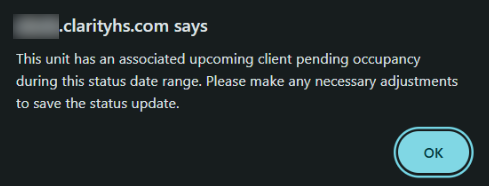
If there is a pending reservation, the System Administrator isn’t allowed to update the Site/Building/Unit to make it offline/inactive. A warning will appear for the user to update the reservation if they need to adjust the status.
- The warning text reads:
“This unit has an associated upcoming client pending occupancy during this status date range. Please make any necessary adjustments to save the status update.”
If there is a pending reservation, the system prevents the System Administrator from toggling Enable Reservations to OFF at the Unit level. Instead, the system warns the user that pending reservations must be resolved before adjusting this setting.
- The warning text reads:
“There is one or more pending reservations. Please resolve any pending reservations to update this setting.”

However, if there is a pending reservation, the system does allow the user to toggle Enable Reservations OFF at the site/building levels. After the user toggles Enable Reservations OFF at the site/building levels, this toggle stays ON at the unit level. The user will be able to toggle Enable Reservations OFF for any units that don’t have pending reservations.
INVENTORY Management (Units)
The INVENTORY unit’s Occupancy History page shows the reservation "Status" associated with a unit or bed. The Unit Occupancy History page has a new category, “Reservation,” that shows the history of reservations associated with a Unit or Bed:
- The new category shows the “Reservation: Status.” For example:
- "Reservation: Pending" (if a unit/bed is reserved and the client has not yet checked in)
- "Reservation: No Show" (if a client is a "no show" for a reserved unit/bed)
- "Reservation: Occupied" (if a client is present and occupying a reserved unit/bed).
Latest Daily Arrival Time Settings
System Administrators can set a default "Latest Daily Arrival Time" for reservations when the following is true:
- A site/building/unit has Enable Reservations = ON
Enable Daily Arrival Time (enable_arrival_time) is a toggle located below Allow Referred Reservation on the site/building/unit setup.

When Enable Daily Arrival Time = ON, a new time selector field, Default Latest Daily Arrival Time (default_arrival_time), shows.

The "Default Latest Daily Arrival Time" will correspond to a "Latest Daily Arrival Time" selector option for Reservations.
Click on the clock icon for the Default Latest Daily Arrival Time field to choose the default latest daily arrival time for clients.
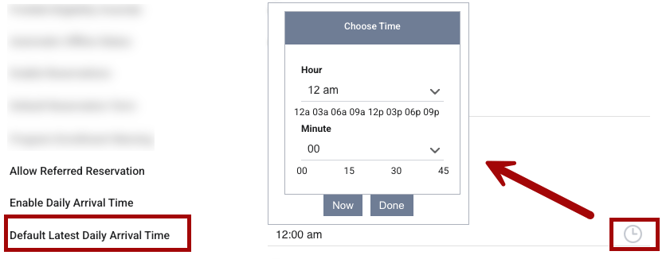
Enable Daily Arrival Time and Default Latest Daily Arrival Time are added to the audit log for the relevant site, building, and/or unit/bed.
Latest Daily Arrival Time Details
When the "Latest Daily Arrival Time" is reached, any pending reservations will automatically be marked "No Show," and the associated beds/units/slots will become available for a new reservation for that night.
- If a client is a "No Show" at the "Latest Daily Arrival Time" and has additional days reserved, the rest of the reservations should remain. Only the night the client is marked "No Show" will be made available for a new reservation.
When creating a reservation, a new "Latest Daily Arrival Time" selector is available. This option only shows when Enable Daily Arrival Time = ON in the applicable Reservation Options. Users who can create and manage reservations can adjust the "Latest Daily Arrival Time" as needed.
The Latest Daily Arrival Time (latest_arrival_time) selector is available for Reservations created from the Attendance module and Reservations created from the client Services section (client and program level).
System Administrators can review “Latest Daily Arrival Time" data in the reservation audit log.
Service Management
Attendance Services and Reservations for units/beds can be managed in the Attendance Module for active units/beds that have a site/building/unit where:
- Enable Reservations = ON in site/building/unit settings
- There is an active Daily Attendance Service connected.
Service Connection Management
System Administrators can now designate which units/beds are connected to Daily Attendance Services. On the Edit Service Item page, an INVENTORY CONNECTIONS section is available.
Connection management availabilities are available only for the Service Items that meet the following conditions:
- Service Category = Housing
- Service Site Type = Residential: special needs and non-special needs OR Residential: special needs only
- Service item Delivery Type = Daily Attendance.
If the Service Item meets the conditions above, the INVENTORY CONNECTIONS section is visible on the Edit Service Item page.
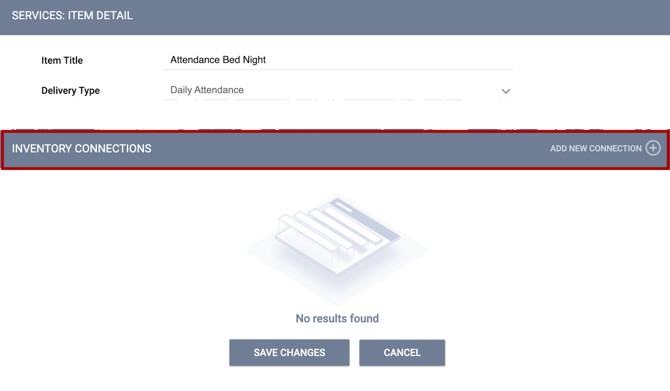
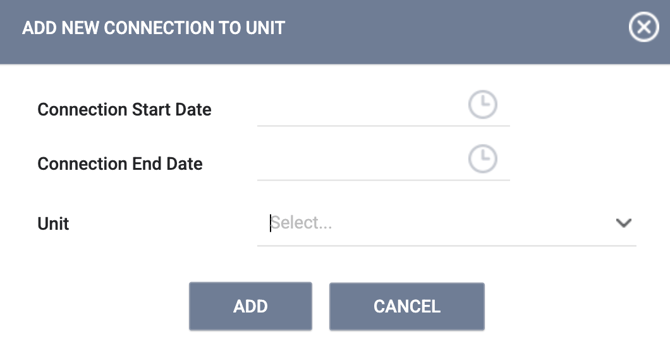
When the user clicks on ADD NEW CONNECTION, the ADD NEW CONNECTION TO UNIT box appears with the following:
- Connection Start Date and Time (required) - the date the Unit became connected to the Inventory
- Connection End Date and Time (can be blank) - the date the Unit stopped being connected to the Inventory
- Unit - a picklist of units
- When the Unit belongs to one agency and the program assigned to this unit belongs to another agency, this unit can be connected to service items of both agencies.
- The units follow a “Building > Unit” hierarchy, where multiple units can be selected at one time.
Once connections are added, the table shows the following details:

Additional details:
- There can only be one attendance service connected to a Unit; however, many units can be connected to a single service item. Once a service is connected, additional services with overlapping connection dates cannot be added or applied to the same unit. Past and Future connections can still be added for the Unit if the dates do not overlap.
- When the user creates a service connection, the system checks the service Start Availability and End Availability dates at the time a service connection is added to the site/building/unit. The system allows creating service connections if the connection start/end date falls between the Service Start Availability and End Availability.
- Service item connection dates can be edited; however, the unit cannot be modified.
- Service item connections can be deleted if the user’s access rights permit deletions:
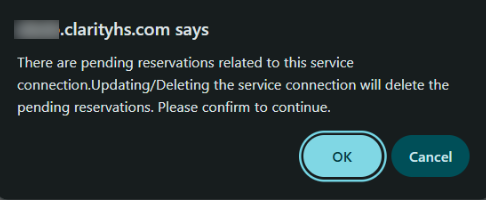
- If a Service Item connection is deleted, the system automatically deletes “Reservation: pending” records within the Unit Occupancy History page. In this situation, a warning appears to confirm that the user wants to proceed with deleting the connection. The warning reads:
“There are pending reservations related to this service connection. Updating/Deleting the service connection will delete the pending reservations. Please confirm to continue.”
- If a Service Item connection is deleted, the system automatically deletes “Reservation: pending” records within the Unit Occupancy History page. In this situation, a warning appears to confirm that the user wants to proceed with deleting the connection. The warning reads:
Service item status changes consider existing connections.
- Manage > Service - Service management:
- When a user tries to modify the Service status to inactive, or tries to reduce the Service Item Activity period, the system checks if there are Attendance Service connections
- When a user tries to modify the Service status to inactive, the system checks if there are pending reservations for any Service Item of this Service. If there are:
- The System warns the user about pending reservations with the following message:
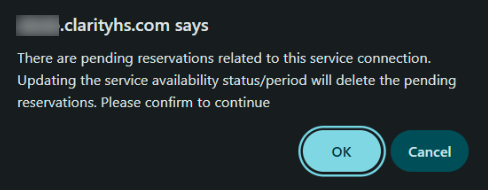
“There are pending reservations related to this service connection. Updating the service availability status/period will delete the pending reservations. Please confirm to continue.”
- The System warns the user about pending reservations with the following message:
-
-
-
If the user confirms:
-
-
-
-
-
- The system deletes pending reservations outside the updated period
- The system updates the existing Attendance Service connections so that they fit the updated Service Item period. If an existing connection doesn’t fit, the system deletes it.
-
-
Attendance Module services will appear the same for users. When a user navigates to Attendance → Edit for a service connected to a site/building/unit, the tables show:
- Unit/Bed instead of Slot.
- The column shows [Unit_name: Bed_name] instead of the slot number.
Unit Connection management
Users can add a Unit for a time frame within the Service Item activity period and where there is no other Service Item connected.
- If a program is connected to the service, the program cannot be disconnected from the service if a unit is connected to the service item.
- If a service item has a current connection to a unit:
- the program connection cannot be deleted
- The program will display a tooltip that reads:
“Active inventory service connection must be ended before the program can be disconnected from this service.”

- If a service item has a current connection to a unit:
-
- If a service item has a future connection to a unit:
- If a user tries to uncheck the toggle, the system asks the user for confirmation with the following message that reads:
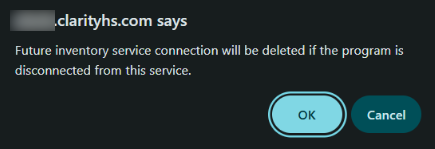
“Future inventory service connection will be deleted if the program is disconnected from this service.”
- If a user tries to uncheck the toggle, the system asks the user for confirmation with the following message that reads:
- If a service item has a future connection to a unit:
-
-
- If the user confirms, the system deletes the connection to the program. If service items for the service have connections to units, these connections are deleted. If there are pending reservations, they will be deleted.
-
When a Daily Attendance Service Item is connected to a unit, the Service Item Detail page > Reservation Options section display depends on the site/building/unit’s Enable Reservations setting:
- If Enable Reservations is ON for at least one site/building/unit where the service is assigned, the inventory based settings override the service item’s existing Reservation settings.
- The system will not show Reservation Sections and Reservation Slots sections on the Service Item setup page.
- If there is no current unit connected but there are past or future connections, the user sees the details for the past and future connection in a popup window.
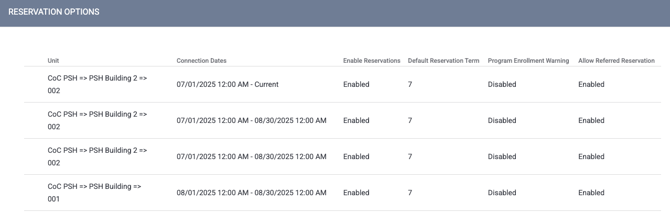
A new table shows the housing inventory units that have been connected to the service item.
- Housing Inventory - shows the unit where the service is connected
- Program - name of program connected to the inventory
- Connection Dates - Connection Start Date - Connection End Date. End Date shows “current” if null
- Reservations - Enabled or Disabled based on whether Enable Reservations is On at the site/building/unit level.
- Total Beds = calculation that shows “Unit Configuration Bed Total” value from the current unit configurations of units where the service item is connected and sum them up. Calculation includes units/beds with inactive/offline status.
- The system updates the ''Total Beds'' value on the Service Item setup page when:
- The current unit configuration is changed for the unit
- The “Unit Configuration Bed Total” value is changed for current unit configuration.
- The system updates the ''Total Beds'' value on the Service Item setup page when:
- If a Service Item connection is deleted, the system automatically deletes “Reservation: pending” records within the Unit Occupancy History page. In this case, a warning appears to confirm the user wants to move forward with deleting the connection. The warning reads:
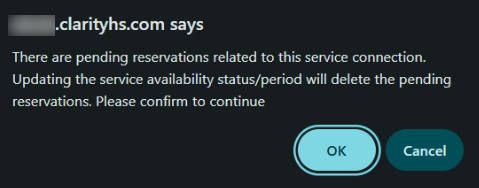
“There are pending reservations related to this service connection. Deleting the service connection will delete the pending reservations. Please confirm to continue.”
Unit Resources: Attendance Services
If the unit is connected to the service item within the Service Item setup page, there is a new Attendance Services section in the Resources sidebar for the Unit page.
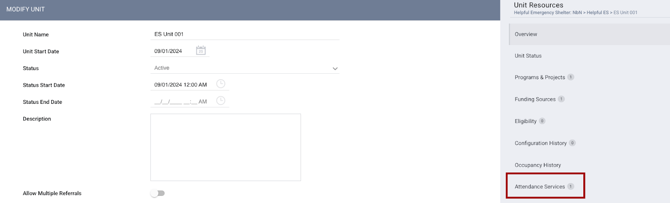
- Within the Attendance Services section of the sidebar, there is a header that shows “Attendance Services”
- Once the user has connected a service/service item to the unit, the following columns displays on the screen:
- Service Name: Service Item Name
- Connection Start Date
- Connection End Date.

- A history of all service/service item connections is listed, with future connections at the top, followed by the current connection and all previous connections below it arranged in ascending order by Connection Start Date.
- The current connection is bold.
Additional details:
- When a Daily Attendance service is connected to a client’s unit, the Program Enrollment Bed and/or Unit assignment dates match the bed night service dates:
- If the service is connected to the unit, and the user creates a reservation for this service within the client program and when the user marks the reservation day as Present, the system automatically creates an occupancy record for this date within the client program
- When Reservations are enabled, the program enrollment Unit/Beds tab shows the client assigned to the unit/bed for all dates the client is marked “Present” or in attendance for the service:
- The occupancy details are read-only.
- When Reservations are enabled, users cannot create an occupancy within the program enrollment.
- There is a message above the read-only occupancy details that reads: “Occupancy managed with reservations”
- If the days the client is marked Present are split up by one or more “No Show” days, there is an occupancy record for each group of consecutive days marked present.
- When Reservations are NOT enabled - When a bed/unit is assigned within the program enrollment Unit/Beds tab, bed night services are automatically added for each night of the bed/unit assignment. Also, when the user provides a service within the client program, the system automatically creates an occupancy for the same period:
- If the user creates occupancy with the Start Date in the past and without End Date > the system immediately creates a client program service record with all attendance days from the past to today and after the system’s automated process will add an attendance day each day
- As soon as the user adds an End Date for the occupancy, the system immediately adds all attendance days to the client program service until End Date.
- If the user enters a past date in the Occupancy End Date, the system will show a warning message asking whether the system should delete extra attendance days. This is true whether the Occupancy End Date was Null originally, and when a prior End Date is adjusted to an earlier date.
- The warning reads:
“There are attendance service dates after the new Occupancy End Date. Would you like to delete the attendance dates after the Occupancy End Date?”
- The warning reads:
- If the user enters a past date in the Occupancy End Date, the system will show a warning message asking whether the system should delete extra attendance days. This is true whether the Occupancy End Date was Null originally, and when a prior End Date is adjusted to an earlier date.
-
-
- If a user deletes an occupancy record, the system shows a warning message asking whether the system should delete the associated attendance service dates. The warning reads:
“There are attendance service records connected to this occupancy. Would you like to delete the attendance dates?”
- If a user deletes an occupancy record, the system shows a warning message asking whether the system should delete the associated attendance service dates. The warning reads:
-
Referrals
Users now have the ability to reserve a housing INVENTORY unit or bed when making a direct referral from the client’s Referrals tab. The housing INVENTORY unit/bed can be reserved when:
- There is an active Daily Attendance Service connected
- Enable Reservations = ON in site/building/unit settings
- Allow Referred Reservation = ON in Referral Settings.
The direct referral and reservation appears just as it does now for users, but instead of “Slots,” the system shows available units/beds.
Updated: 02/10/2026