
This article is for the new Clarity interface. Screenshots and descriptions will be updated as features are released. For the new interface article, see Initial Occupancy Information.
Table of Contents
Overview
When a client is enrolled in a housing program with an applicable project type that uses INVENTORY, Initial Occupancy Start Date appears as a separate field on the enrollment screen, within a section titled Initial Occupancy Information.
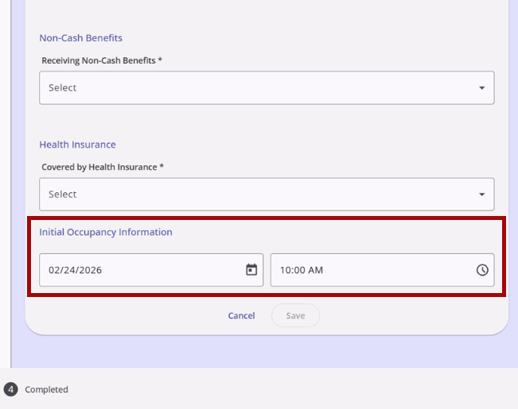
The Initial Occupancy Information section will show on the enrollment screen if one of the following conditions is true:
The Initial Occupancy Information section will show on the enrollment screen for a program if one of the following conditions is true:
-
For new enrollments:
-
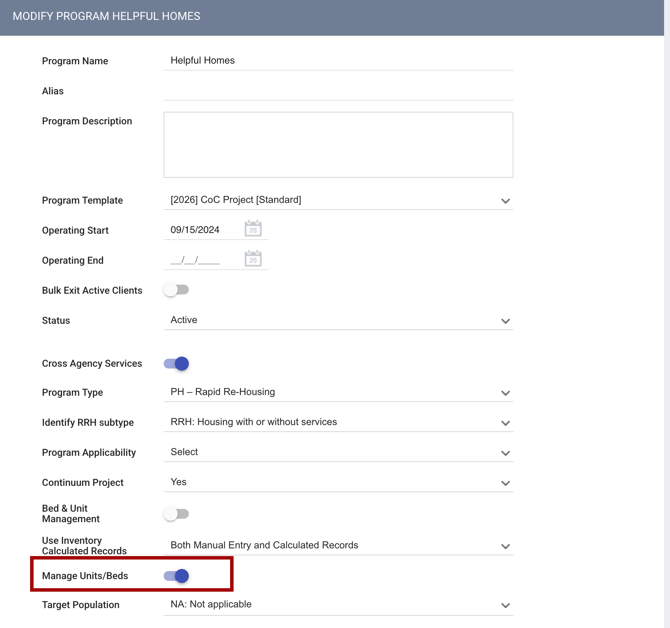
The Manage Units/Beds setting is enabled in the program's settings
OR
-
The program placement (enrollment) is the result of a referral, and that referral has a connected unit/bed (even if the project type is not included in the list of applicable program types)
-
-
For enrollment edits:
-
The Manage Units/Beds setting is enabled in the program's settings.
-
If the program does not meet the conditions above, the Initial Occupancy Information section will not appear on the enrollment screen.
Note: The Manage Units/Beds setting is found by navigating to LAUNCHPAD > MANAGE > PROGRAMS > MODIFY PROGRAM [program name] in the legacy interface.
Temporary Housing Projects
When a client is enrolled in a housing program with an applicable project type that is using INVENTORY, the Add program enrollment page includes an Initial Occupancy Information section. The Initial Occupancy Information section includes the Initial Occupancy Start Date field.
The applicable project types are:
- Emergency Shelter – Night-by-Night
- Emergency Shelter – Entry Exit
- Transitional Housing
- Safe Haven
Enrollments from a Referral
If the enrollment is the result of a referral, the Initial Occupancy Start Date defaults to the current date.
- The Initial Occupancy Start Time defaults to the nearest 15 minutes.
- The user can update the Project Start Date and the Initial Occupancy Start Date/Time, but the Initial Occupancy Start Date/Time cannot be earlier than the Project Start Date.
If the user tries to save the enrollment with the Initial Occupancy Start Date set earlier than the Project Start Date, the enrollment cannot be saved, and a pop-up warning appears that reads:
“The Initial Occupancy Start Date cannot be earlier than the Project Start Date. Please adjust the dates as appropriate.”
Users can press the OK button, then update the field.
When creating the program enrollment from a referral, and the enrollment’s Project Start Date is the only date adjusted before saving the screen, the Initial Occupancy Start Date and the Unit Start Date on the Units/Beds tab reflect the enrollment’s Project Start Date. Refer to the The Units/Beds Tab (New Clarity Interface) article for more details.
Once enrollment is saved, the Initial Occupancy Start Date becomes read-only and cannot be updated on the enrollment screen.
- There is a warning above the Initial Occupancy Start Date field that reads:
“Please go to the Units/Beds tab to update the Initial Occupancy Start Date.”
- If the user updates the Initial Occupancy Start Date on the Units/Beds tab, the enrollment’s Initial Occupancy Start Date also updates to display the same date and time.
If the user sets a later date for the Initial Occupancy Start Date than the Project Start Date, the referral will still be completed on the Project Start Date.
- The unit/bed occupancy/availability status remains Pending Occupancy until the Occupancy Start Date/Time.
Enrollments without a Referral
If the enrollment is not a result of a referral:
- The Initial Occupancy Start Date field still shows within the Initial Occupancy Information section.
- The field is empty and read-only.
- The field appears grayed out, and there is a warning that reads:
“Please go to the Units/Beds tab to fill out the Initial Occupancy Start Date.”
- Once the field is filled out on the Units/Beds tab, the value will display on the enrollment screen.
Updates to Occupancy for Enrollments (With/Without a Referral)
Once an enrollment (with or without a referral) with an Initial Occupancy Start Date for a unit/bed is saved, it’s not uncommon for updates to be made.
New Occupancy Record
If the user creates a new occupancy on the Units/Beds tab of an enrollment because the client moves to a new unit, the Initial Occupancy Start Date on the enrollment screen is not updated. The Initial Occupancy Start Date on the enrollment screen remains the date of the first Initial Occupancy Start Date in the program.
Deleted Occupancy Record
If there is only one occupancy record for the program and it is deleted, the Initial Occupancy Start Date field is cleared on the enrollment screen. This is logged in the enrollment screen audit log.
- There is a warning above the Initial Occupancy Start Date field that reads:
“Please go to the Units/Beds tab to update the Initial Occupancy Start Date.” - The Initial Occupancy Start Date will remain empty until the occupancy is added on the Units/Beds tab.
- The Initial Occupancy Start Date will automatically populate with the value entered on the Units/Beds tab.
Note: If the deleted occupancy record is connected to a completed unit referral, the referral remains in Complete status, and the unit's occupancy status reverts to Pending Occupancy.
Multiple Occupancy Records
If there are multiple occupancy records for the program and the first one is removed, the Initial Occupancy Start Date on the enrollment screen is updated to match the next occupancy record in the Units/Beds tab.
Occupancy End Dates and Offline/Inactive Status
If a unit/bed has a previous occupancy end date or offline/inactive status on the same date as the Project Start Date, the Initial Occupancy Start Date/Time cannot be before the unit/bed offline/inactive status end date or the previous occupancy end date.
If the user tries to save an enrollment with the Initial Occupancy Start Date earlier than the unit's offline/inactive status end date or the previous occupancy end date, the enrollment cannot be saved, and a pop-up warning appears that reads:
“The client’s occupancy in [Unit/Bed name] overlaps with the [unit’s/bed’s] offline/inactive status. Please adjust the occupancy or offline/inactive status dates as appropriate.”
OR
“The client’s occupancy in [Unit/Bed name] overlaps with a previous occupancy. Please adjust the occupancy dates as appropriate.”
Users can click the OK button, then update the occupancy or offline/inactive status dates.
- When the user clicks OK, they remain on the enrollment page and can either update the unit occupancy start date or cancel the enrollment and update the unit status date.
Unit End Date and Pending Referrals
If a unit/bed has a pending referral connected to it, the Unit End Date for the current occupancy cannot be:
- Cleared (left blank), or
- Changed to a date later than the referral's Referred Date
on the program's Units/Beds tab.
This prevents a unit from being occupied and having a pending referral at the same time.
If the user tries to save a Unit End Date that conflicts with a pending referral, the field is flagged with an error.
Users can either update the pending referral (complete, reassign, or cancel it) or choose a different Unit End Date before saving.
Updates to Project Start Date
If the user enrolls the client, sets the Initial Occupancy Start Date/Time, saves the enrollment, then returns to the enrollment and updates the Project Start Date, the Project Start Date must still be earlier than the Initial Occupancy Start Date/Time.
- When the Project Start Date is updated, the Initial Occupancy Start Date is not automatically updated.
- If the user tries to save the enrollment with the Initial Occupancy Start Date earlier than the Project Start Date, there is a warning that reads,
“The Initial Occupancy Start date cannot be earlier than the Project Start date. Please adjust the dates as appropriate.”
Permanent Housing Projects
When a client is enrolled in a housing program with an applicable project type that uses INVENTORY, and the housing move-in date is applicable, the Add program enrollment page includes an Initial Occupancy Information section. The Initial Occupancy Information section includes the Initial Occupancy Start Date field.
The applicable project types are:
- PH - Permanent Supportive Housing (disability required for entry)
- PH - Housing Only
- PH - Housing with Services (no disability required for entry)
- PH - Rapid Re-Housing where “Identify RRH subtype” = RRH: Housing with or without services
For group enrollments, the Initial Occupancy Start Date field is editable only for the first household member. For all subsequent household members, it is filled with the same value and will be read-only.
Enrollments from a Referral
If the enrollment is the result of a referral, the Initial Occupancy Start Date defaults to the current date; users can leave the field blank.
- The Initial Occupancy Start Time defaults to the nearest 15 minutes.
- The user can update the Initial Occupancy Start Date/Time, but the Initial Occupancy Start Date/Time cannot be earlier than the Project Start Date and cannot be earlier than the Referral Reassign Date or Referral Date (for direct referrals).
- Project Start Date doesn’t depend on the Referral’s date.
- The Housing Move-in Date populates automatically with the same date as the Initial Occupancy Start Date. The Housing Move-in Date field is read-only on the enrollment screen if the Manage Units Beds setting is enabled on the program's settings.
- The Initial Occupancy Start Date field can be edited to clear the date (if the Housing Move-in Date is unknown) or to add a future occupancy date. The Housing Move-in Date field will auto-populate to match the value of the Initial Occupancy Start Date field.
- If the Manage Units/Beds setting is NOT enabled on the program’s settings, the Housing Move-in Date field will not be read-only and will be optional, maintaining the current system behavior where it can be manually updated.
- The Initial Occupancy Start Date field can be edited to clear the date (if the Housing Move-in Date is unknown) or to add a future occupancy date. The Housing Move-in Date field will auto-populate to match the value of the Initial Occupancy Start Date field.
If the user tries to save the enrollment with the Initial Occupancy Start Date field set earlier than the Project Start Date, the enrollment cannot be saved, and a pop-up warning appears that reads:
“The Initial Occupancy Start Date cannot be earlier than the Project Start Date. Please adjust the dates as appropriate.”
Users can press the OK button, then update the field.
Once the Project Start Date, the Initial Occupancy Start Date (and the matching Housing Move-in Date), and all required fields are complete, click Save to complete the enrollment (or to go to the next household member's enrollment screen for a group enrollment).
Note: When creating a program enrollment from a referral, and the enrollment’s Project Start Date field is the only date adjusted before saving the screen, the Initial Occupancy Start Date and the Unit Start Date on the Units/Beds tab reflect the enrollment’s Project Start Date. The Housing Move-in Date also updates to match the Initial Occupancy Start Date, Unit Start Date, and Project Start Date.
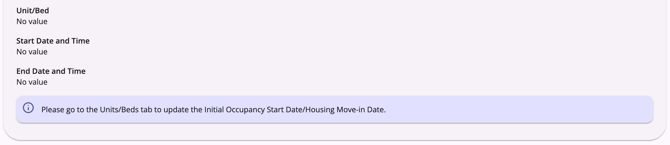
Once the enrollment has been saved, both the Initial Occupancy Start Date and Housing Move-in Date fields are read-only and cannot be updated on the enrollment screen.
There is a warning at the bottom of the enrollment screen that reads:
“Please go to the Units/Beds tab to update the Initial Occupancy Start Date/Housing Move-in Date.”
-
When the user updates the Initial Occupancy Start Date on the program’s Units/Beds tab, the enrollment's Initial Occupancy Start Date and Housing Move-in Date also update on the enrollment screen to display the same date and time. This updates on the current and new interfaces.
Notes: If the user sets a later date for the Initial Occupancy Start Date than the Project Start Date, the referral will still be completed on the Project Start Date.
- The unit/bed occupancy/availability status remains Pending Occupancy until the Initial Occupancy Start Date/Time.
Updating the Initial Occupancy Start Date
Users can add the client to the unit/bed when they actually move in, and this automatically updates the Initial Occupancy Start Date and the Housing Move-in Date. This will be done by adding the unit referral connection on the program's Units/Beds tab.
When adding the unit referral connection, only related pending unit/beds are shown when the user clicks Add Unit Connection on the Units/Beds tab.
- The program list is limited to programs with a Start Date > /= the Reassign Date (or the Referral Date for direct referrals).
Refer to the Initial Occupancy Information article for more information.
Pending Referrals
If the Initial Occupancy Start Date and the Housing Move-in Date are left blank when the client is enrolled as a result of a referral, then the referral is completed, but the unit/bed remains pending.
- If the Initial Occupancy Start Date and Housing Move-in Date fields were left empty, and then the client is exited from the program, the Bed Assignment is marked as Expired.
Pending Unit Occupancy Warning Banner
If the Edit Enrollment-based Unit Records access right is enabled for the user with the agency that owns the enrollment, a clickable warning banner will show on the client’s profile. A tooltip will read:
“The client has a pending unit/bed occupancy. Click here to add the referral connection when the client moves into housing.”

When the user clicks the warning, the system redirects the user to the program’s Units/Beds tab, and the Add Unit Connection pop-up is automatically displayed.
- Users can also add the client to the unit/bed by navigating to the program’s Units/Beds tab and clicking Add Unit Connection. Only pending unit/bed occupancies will show on the Add Unit Connection pop-up.
- When the user adds the client to the unit/bed, this automatically updates the Housing Move-in Date and Initial Occupancy Start Date.
Note: For general users (whose agency does not own the enrollment), the warning banner will appear but will not be clickable.
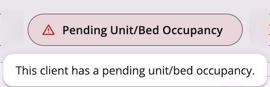
The warning banner will show on the client's profile with the following tooltip:
“This client has a pending unit/bed occupancy."
Multiple Pending Occupancies
When a client has several programs with available pending occupancies and the Edit Enrollment-based Unit Records access right is enabled for the user, the banner has a tooltip that reads:
“This client has a pending unit/bed occupancy. Select a Program to add the unit connection when the client moves into housing.”
- When the user clicks the banner, the system opens a pop-up with program names and links to the appropriate client program’s Units/Beds tab(s).
Enrollments without a Referral
If the enrollment is not a result of a referral:
- The Initial Occupancy Start Date field still shows within the Initial Occupancy Information section.
- The field is empty and read-only.
- The field appears grayed out, and there is a warning that reads:
“Please go to the Units/Beds tab to fill out the Initial Occupancy Start Date/Housing Move-in Date.”
-
Once the field is filled out on the Units/Beds tab, the value will display on the enrollment screen.
Updates to Occupancy for Enrollments (With/Without a Referral)
Once an enrollment (with or without a referral) with an Initial Occupancy Start Date for a unit/bed is saved, it’s not uncommon for updates to be made.
New Occupancy Record
If the user creates a new occupancy on the Units/Beds tab because the client moves to a new unit, the Initial Occupancy Start Date and Housing Move-in Date fields on the enrollment screen are not updated. They remain the date of the first Initial Occupancy Start Date in the program.
Deleted Occupancy Record
If there is only one occupancy record for the program and it is deleted, the Initial Occupancy Start Date and the Housing Move-in Date fields are both cleared on the enrollment screen. This is logged in the enrollment screen audit log.
- There is a warning above the Initial Occupancy Start Date field that reads:
“Please go to the Units/Beds tab to update the Initial Occupancy Start Date.” - The Initial Occupancy Start Date and Housing Move-in Date fields will remain empty until the occupancy is added on the Units/Beds tab.
- The Initial Occupancy Start Date and Housing Move-in Date automatically populate with the value entered on the Units/Beds tab.
Note: If the deleted occupancy record is connected to a completed unit referral, the referral remains in Complete status, and the unit's occupancy status reverts to Pending Occupancy. This does not affect the Housing Move-in Date field, which is cleared as described above.
Multiple Occupancy Records
If there are multiple occupancy records for the program and the first one is removed, the Initial Occupancy Start Date and Housing Move-in Date in the enrollment are updated to match the next occupancy record in the Units/Beds tab.
Occupancy End Dates and Offline/Inactive Status
If the unit/bed has a previous occupancy end date or an offline/inactive status on the same date as the Project Start Date, the Initial Unit Occupancy Start Date/Time cannot be before the unit's status end date/time or the previous occupancy end date.
When the user tries to save the enrollment with the unit/bed Initial Occupancy Start Date earlier than the unit/bed offline/inactive status end date, or the previous occupancy end date, the enrollment cannot be saved, and a pop-up warning appears that reads:
“The client’s occupancy in [Unit/Bed name] overlaps with the [unit’s/bed’s] offline/inactive status. Please adjust the occupancy or offline/inactive status dates as appropriate.”
OR
“The client’s occupancy in [Unit/Bed name] overlaps with a previous occupancy. Please adjust the occupancy dates as appropriate.”
Users can click the OK button, then update the occupancy or offline/inactive status dates.
- When the user clicks OK, they remain on the enrollment page and can either update the Unit/Bed Initial Occupancy Start Date or cancel the enrollment and update the unit/bed status date.
Unit End Date and Pending Referrals
If a unit/bed has a pending referral connected to it, the Unit End Date for the current occupancy cannot be:
- Cleared (left blank), or
- Changed to a date later than the referral's Referred Date
on the program's Units/Beds tab.
This prevents a unit from being occupied and having a pending referral at the same time.
If the user tries to save a Unit End Date that conflicts with a pending referral, the field is flagged with an error.
Users can either update the pending referral (complete, reassign, or cancel it) or choose a different Unit End Date before saving.
Updates to Project Start Date
If the user enrolls the client, sets the Initial Occupancy Start Date/Time, saves the enrollment, then returns to the enrollment and updates the Project Start Date, the Project Start Date must still be earlier than the Initial Occupancy Start Date/Time.
- When the Project Start Date is updated, the Initial Occupancy Start Date is not automatically updated.
- If the user tries to save the enrollment with the Initial Occupancy Start Date earlier than the Project Start Date, there is a warning that reads,
“The Initial Occupancy Start date cannot be earlier than the Project Start date. Please adjust the dates as appropriate.”
The enrollment cannot be saved until the dates are adjusted.
Audit Log
The View Audit Log option can be clicked from the Action Menu icon on the enrollment record by a system administrator with audit log access rights.

The Initial Occupancy Start Date field is tracked in the enrollment screen audit log, and any changes made are logged.
Updated: 09/11/2026