
Table of Contents
Purpose
The Data Import Analysis LookML dashboard is split into three sections that analyze data imports with increasing granularity.
The top section provides a high-level overview of imports across the system, broken down by the importing agency and importing user.
The bottom section narrows in on individual imports. It includes import validation results, counts of successfully imported records, and completed import results by category.
Dashboard Access
Dashboards are available to all instances with Data Analysis enabled. This dashboard is a LookML Dashboard. How you access it depends on whether you use standalone or embedded Looker and your access rights. In either case, you must have Data Analysis enabled in your access role at a minimum. See Rights Glossary for Access Roles for information about Data Analysis access rights.
Note: For accurate systemwide results, the user running the report must have an access role that includes the Systemwide Data Analysis access right.
Standalone Looker
This dashboard is accessible in Looker by utilizing the following pathway:
- "All Folders"
- "LookML Dashboards"
- "[Dashboard Name]"
- "LookML Dashboards"
Once selected, the dashboard will begin to run. The utilized models are dashboard-dependent.
Embedded Looker
LookML Dashboards accessed through embedded Looker must first be enabled for the instance in standalone Looker, then toggled on in the Data Analysis settings before they're available in the Built In Reports folder in the Data Analysis tab in the Report Library.
For steps to enable and access these reports, see the Embedded Looker: Looker - Clarity Human Services Integration article.
Dashboard Filters
The Data Import Analysis dashboard has five dashboard filters. None of these filters is applied to the entire dashboard, as they are designed to focus on specific import results as you scroll through it.
|
Filter |
Application |
|
Import Initial Upload Date Default: is in the last 12 months |
Applies to the top Data Import Metrics section of the dashboard and limits results based on when an import was first uploaded. |
|
Import Date Default: is any value |
Applies to the top Data Import Metrics section of the dashboard and limits results based on when the import was completed. When utilized, only completed imports are analyzed. |
|
Importing Agency Name Default: is any value |
Applies to both the Data Import Metrics section of the dashboard. This filter limits results based on the importing agency. |
|
Import ID Default: is any value (Required to get individual import analysis results) |
Applies to the Individual Import Analysis section of the dashboard. Only one Import ID can be analyzed at a time, and this filter is required to get individual import analysis results. When viewing an import within Clarity Human Services, the Import ID will be present in the URL. |
Content
The following Looks make up the Data Import Analysis dashboard. The overview below is broken down by section and includes summaries of the Looks’ contents. For more information on how a Look is configured or what fields are used, review the Look by selecting Explore from Here within the ellipses in the upper right corner.
Data Import Metrics
This section of the dashboard provides high-level metrics and analysis of imports from across the system. Analysis in this section of the dashboard can be further refined using the Import Initial Upload Date, Import Date, and Importing Agency Name dashboard filters.
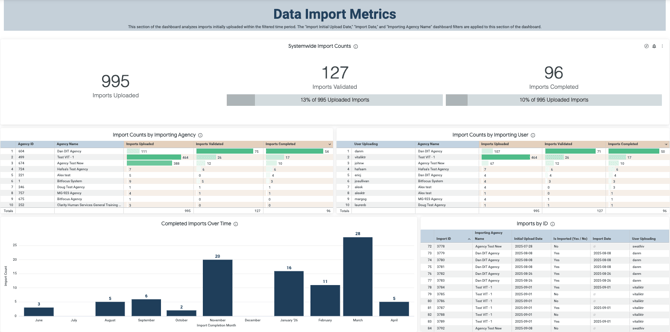
Systemwide Import Counts
This Look provides high-level counts of imports uploaded, validated, and completed, based on the applied dashboard filters.
Import Counts by Importing Agency
This Look provides counts of imports uploaded, validated, and completed, broken down by importing agency, based on the applied dashboard filters.
Import Counts by Importing User
This Look provides counts of imports uploaded, validated, and completed, broken down by importing user, based on the applied dashboard filters.
Completed Imports Over Time
This Look counts the number of completed imports by month based on the applied dashboard filters.
Imports by ID
This Look returns high-level data around each individual Import ID. It can be used as a reference when filtering for a specific import for analysis within the next section of the dashboard. Import ID is required for analysis in the Individual Import Analysis section.
Individual Import Analysis
This section of the dashboard analyzes a single import. Filtering for that individual import utilizing the Import ID dashboard filter is required to generate results for the remainder of the dashboard.
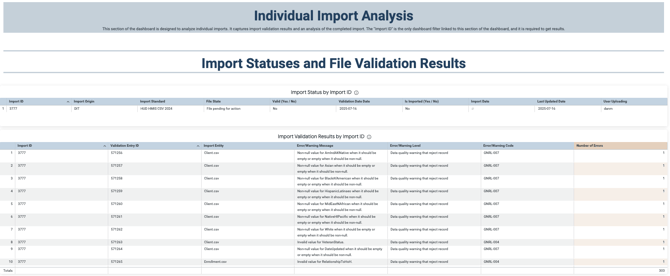
Imports Status by Import ID
This Look includes additional information about the status of an individual Import ID.
Import Validation Results by Import ID
This Look includes any validation errors associated with an individual Import ID.
Successfully Imported/Updated Client, Enrollment, and Exit Records
This Look includes the count of successfully imported/updated client records, enrollment records, and exit records as a percentage of the total count of applicable records attempted to be uploaded through the identified Import ID.
Successfully Imported/Updated Enrollment Screens, Services, and Assessments
This Look includes the count of successfully imported/updated enrollments, screens, services, and assessments, as a percentage of the total count of applicable records attempted to be uploaded under the identified Import ID.
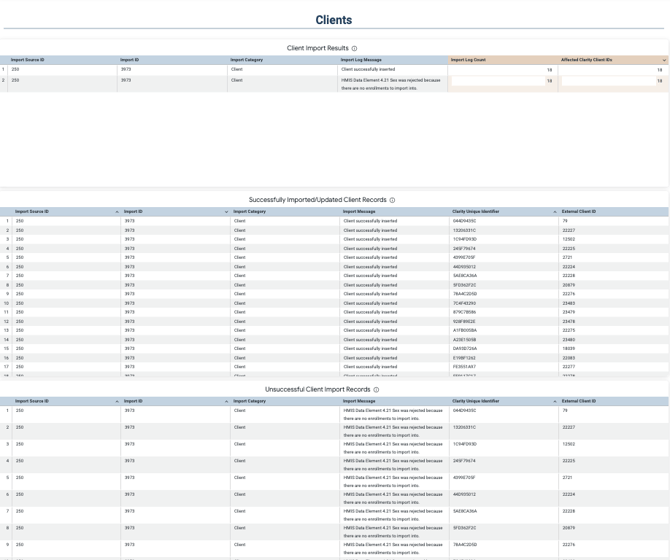
Client Import Results
This Look provides a summary of the client import results associated with an individual Import ID.
Successfully Imported/Updated Client Records
This Look captures all the individual client records that were successfully imported/updated as part of the identified Import ID.
Unsuccessful Client Import Records
This Look captures all the individual client records that were unsuccessfully imported/updated as part of the identified Import ID.
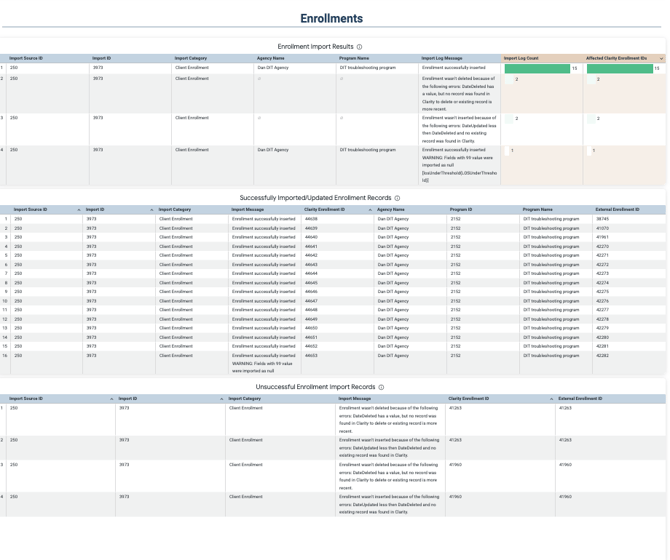
Enrollment Import Results
This Look provides a summary of the enrollment import results associated with an individual Import ID. Enrollment import records pertain to the overall enrollment record but do not include enrollment screen data.
Successfully Imported/Updated Enrollment Records
This Look captures all the individual enrollment records that were successfully imported/updated as part of the identified Import ID.
Unsuccessful Enrollment Import Records
This Look captures all the individual enrollment records that were unsuccessfully imported/updated as part of the identified Import ID.
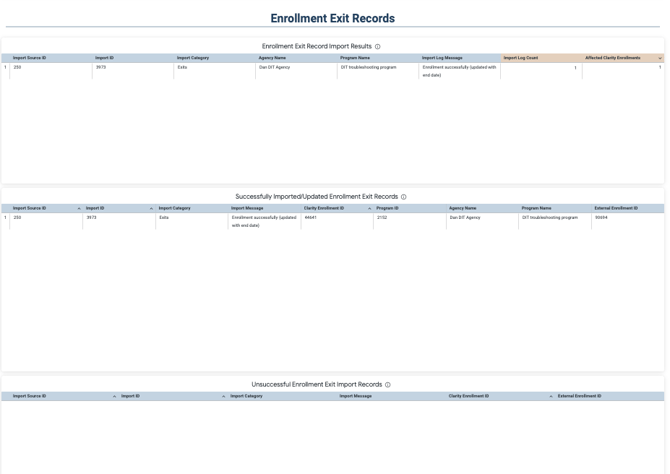
Enrollment Exit Record Import Results
This Look provides a summary of the enrollment exit record import results associated with an individual Import ID. Enrollment exit records pertain to enrollment records being exited, but do not include enrollment exit screen data.
Successfully Imported/Updated Enrollment Exit Records
This Look captures all the individual enrollment exit records that were successfully imported/updated as part of the identified Import ID.
Unsuccessful Enrollment Exit Import Records
This Look captures all the individual enrollment exit records that were unsuccessfully imported/updated as part of the identified Import ID.
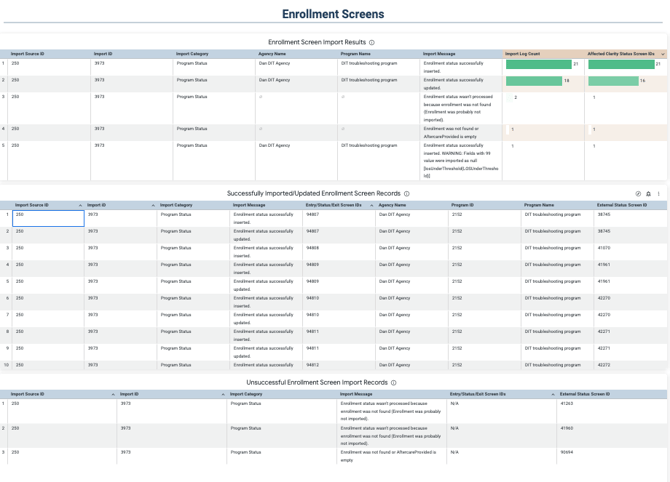
Enrollment Screen Import Results
This Look provides a summary of import records that have an import category of Program Status in association with an individual Import ID. Program Status imports include all enrollment screens; therefore, the imported Clarity ID can represent an Entry, Status, Exit, or Follow-up screen depending on what is being imported.
Successfully Imported/Updated Enrollment Screen Records
This Look captures all the individual enrollment screen records that were successfully imported/updated as part of the identified Import ID.
Unsuccessful Enrollment Screen Import Records
This Look captures all the individual enrollment screen records that were unsuccessfully imported/updated as part of the identified Import ID.
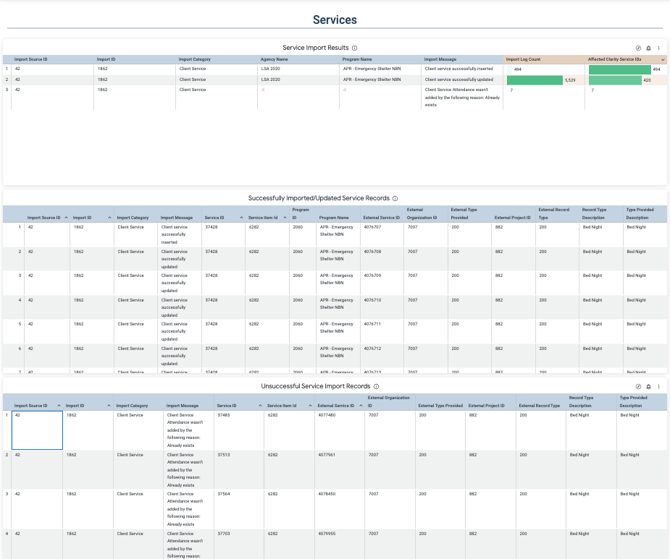
Service Import Results
This Look provides a summary of import records with an import category of Client Service or Service Map, associated with an individual Import ID.
Successfully Imported/Updated Service Records
This Look captures all the individual service records that were successfully imported/updated as part of the identified Import ID.
Unsuccessful Service Import Records
This Look captures all the individual service records that were unsuccessfully imported/updated as part of the identified Import ID.
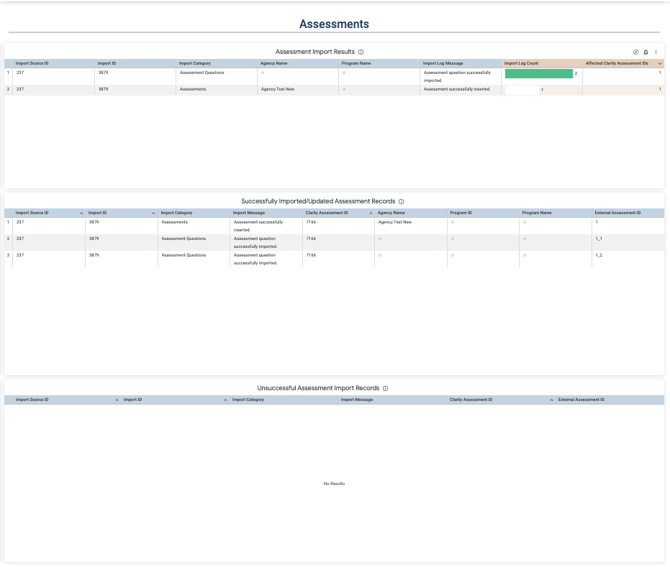
Assessment Import Results
This Look provides a summary of import records with an import category of Assessments, Assessment Questions, or Assessment Screen Mapping, associated with an individual Import ID.
Successfully Imported/Updated Assessment Records
This Look captures all the individual assessment records that were successfully imported/updated as part of the identified Import ID.
Unsuccessful Assessment Import Records
This Look captures all the individual assessment records that were unsuccessfully imported/updated as part of the identified Import ID.
Updated: 09/08/2026