
Overview
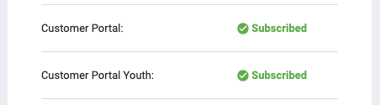
The Customer Portal is an optional component of Clarity Human Services that provides a secure and efficient method for clients and providers to communicate. When this feature is available for a system, the SUBSCRIPTION DETAILS section under SETUP > DASHBOARD will show “Subscribed” for the Customer Portal.
Agency-Level Settings
Enabling the Customer Portal for the system does not automatically enable the Custom Portal for each agency. For the Customer Portal to be available to an agency, system administrators must turn on Customer Portal Enabled at the agency level.
To do this, navigate to MANAGE > SHARING and click Customer Portal in the Advanced Options sidebar. The CUSTOMER PORTAL page appears.
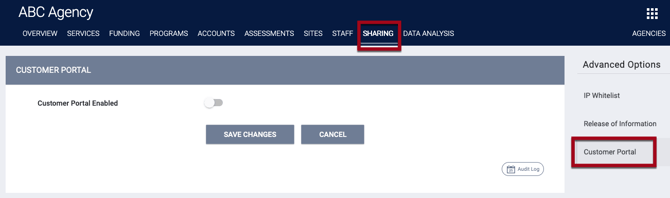
Turn on Customer Portal Enabled. Additional settings available to that agency will appear.
Configure the settings as appropriate for that agency, then click SAVE CHANGES.
Audit Log
Users with Admin Access Role Types with Audit Log permissions enabled in their access role can click the Audit Log button on the agency's CUSTOMER PORTAL page to view changes to settings.
User-Level Settings
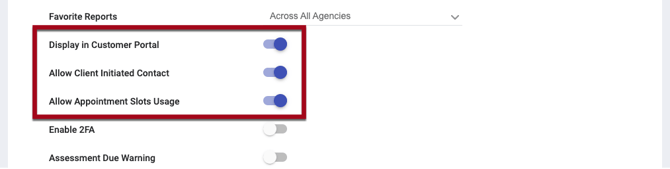
Users may adjust the following in their Account Settings:
- Display in Customer Portal: Users can disable this setting if they do not want their name to be displayed on a client’s Customer Portal dashboard when they are a member of that client’s Care Team.
- Allow Client Initiated Contact: Users can disable this setting if they do not want clients to send them messages through the Customer Portal.
- Allow Appointment Slots Usage: Users can disable this setting if they do not want clients to schedule appointments with them through the Customer Portal.
'Hide from Client Portal' Toggle for Assessments
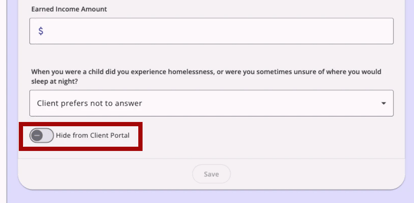
The Hide from Client Portal toggle lets users hide assessment records from a client's portal.
The Hide from Client Portal toggle is available on assessments in the current interface and new interface for users when both of the following are true:
- The Customer Portal is enabled
AND
- The user's access role includes the Customer Portal Individual Record Management access right. System administrators enable this access right in user access roles.
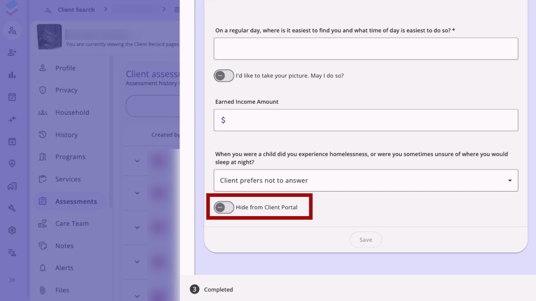
The toggle is available on assessments accessed from both the client-level Assessments tab and the Assessments tab within a program enrollment.
- By default, the toggle is Off, meaning the assessment will be visible in the Client Portal.
The toggle will not appear in the following situations:
- The user's access role does not include the Customer Portal Individual Record Management access right.
- The Customer Portal is not enabled for the user's current agency.
- The assessment was originally submitted by the client through the Client Portal.
Audit Log
All changes to the Hide from Client Portal toggle are recorded in the assessment's audit log.
Updated: 06/10/2026