
Table of Contents
Overview
Some agencies require staff to review and electronically sign a User Policy Agreement before they can access Clarity, either at first login or after a configured enforcement period has elapsed.
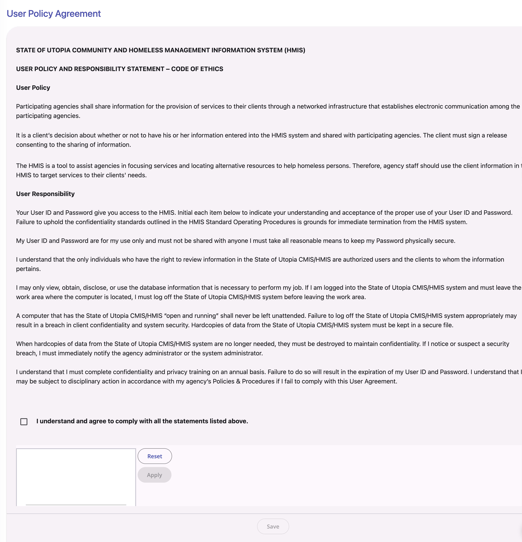
When You'll See the User Policy Agreement
If your agency has User Policy Enforcement turned on, you'll be shown the User Policy Agreement screen after signing in when either of the following is true:
- This is your first time logging in, or
- Your previous agreement's enforcement period has expired.
You won't be able to access the rest of Clarity Human Services until the agreement is completed. If you navigate away or cancel before finishing, you'll be returned to this screen the next time you attempt to access the system.
If your enforcement period expires while you're already logged in, you'll be interrupted and redirected to the agreement screen to complete it before you can continue.
Completing the Agreement
The screen displays your agency's configured policy content, along with any required acknowledgment checkboxes and signature field(s).
- Checkboxes: Check each required acknowledgment. Incomplete required fields display standard field-level validation.
- Signature field(s): Sign using your mouse (on desktop) or your finger/stylus (on mobile or tablet).
- Reset: Clears your in-progress signature so you can sign again.
- Apply: Commits your current signature entry. This button is disabled until you've entered a signature, and becomes active once you do.
- Save: Submits the completed agreement. Save is disabled until all required checkboxes and signature fields are complete; this applies consistently on desktop and mobile/tablet, with no reduced validation on smaller screens.
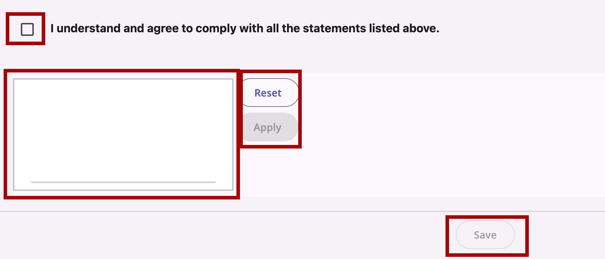
Once you click Save, Clarity records your acceptance, a timestamp, and your signature, and takes you to your default landing page.
Device Support
The User Policy Agreement screen works across devices. Signature capture supports both mouse input (desktop) and touch input (mobile/tablet). All checkboxes and form controls are touch-friendly at mobile and tablet widths, with no horizontal scrolling required.
Configuration Resources
The following configuration resources were noted in this article:
Published: 09/16/2026