
This article is for the new Clarity interface. Screenshots and descriptions will be updated as features are released. For the current interface article, see The Staff Inbox and Secure Messaging.
Table of Contents
- Video Resources
- Overview
- Accessing the Inbox
- Creating a New Message
- Bulk Management of Inbox Messages
Video Resources
Click play for a brief overview:
Overview
Staff members can securely communicate with other staff members who use Clarity Human Services via the internal messaging system. The ability to search messages provides an effective way to keep track of conversations and promote collaboration.
System-wide notifications like referral alerts, adulthood notifications, auto-exit messages, and @ mention alerts are also delivered to the Inbox. The Inbox allows staff members to use real client names instead of Unique Identifiers, providing a secure alternative to external email or chat tools.
Accessing the Inbox
The inbox is accessed by clicking the envelope icon located in the information bar. A number next to the envelope icon indicates that you have unread messages.
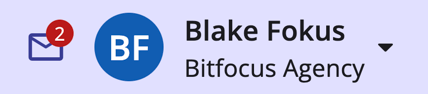
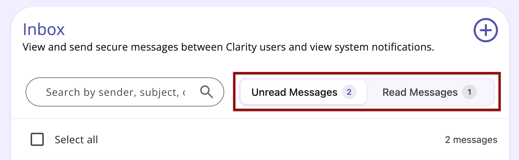
When users click the envelope icon to open the inbox, they are brought to an Unread Messages inbox. Users can navigate between Unread Messages and Read Messages or find a specific message by searching by sender, subject, or body text.
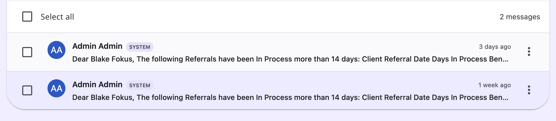
Messages are ordered most recent first. Each message row displays the sender name, a message preview, and the timestamp. To read a message, hover over the message to highlight it and click to open.
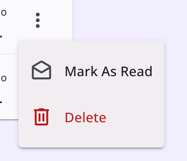
Click the kebab menu to Mark As Read/Unread or Delete.
Replying to Messages in Your Inbox
To reply to a message, type your response into the text box and click Send Response, which becomes clickable once at least one character is added to the message.
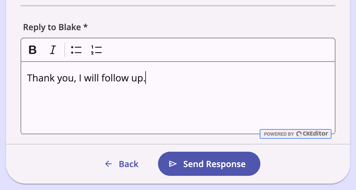
Note: Messages sent by Clarity have a sender name listed as Admin Admin and are display-only. These messages can not be sent replies.
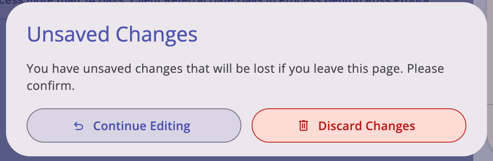
To return to the inbox screen without responding, click Back or click anywhere outside the message sidebar. A warning will display asking if you want to Continue Editing or Discard Changes before the message closes. No drafts are saved.
Creating a New Message
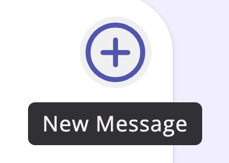
To create a message, click the plus sign.
The Recipient field supports two methods:
- Typeahead Search — Start typing a name into the Recipient field. A real-time dropdown of matching active Clarity users appears, searching system-wide across all agencies and CoCs. Click a result to select that person as the recipient. Inactive or deleted users do not appear in results.
- Hierarchy Navigation — Select a recipient by navigating through dropdown selectors:
- Select a CoC from the first dropdown.
- The Agency dropdown filters to show only agencies within the selected CoC.
- The Receiver dropdown filters to show only active users at the selected agency.
Note: Only one recipient can be selected per message.
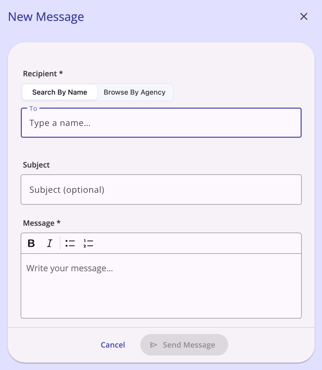
Type your message into the text box. You can format your message using bullets/numbers, italic text, and bold text. Once the message is complete, click Send Message.
Bulk Management of Inbox Messages
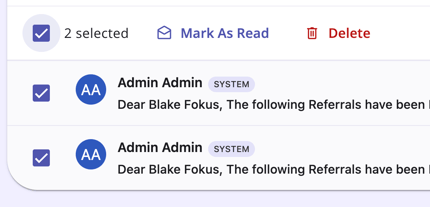
The system allows you to select multiple messages so that more than one message at a time can be deleted, marked as “read,” or marked as “unread.”
To select all messages in the list of Read Messages or Unread Messages, check the box at the top of the list to select all or the check next to the message to select some messages.
Updated: 07/27/2026