
Table of Contents
Overview
Looker recently released new and exciting functionality that allows users to add tabs to their dashboards. Dashboard tabs enable better content organization, improved storytelling and guided data delivery, enhanced performance, and increased capacity per dashboard.
Previously, dashboards had to be arranged for vertical scrolling, but now the same data can be split into individual tabs with independent loading and filtering.

Capacity Limitations
A dashboard can have up to 10 tabs, and it is recommended that each tab has a limit of 20 queries. Previously, a single dashboard had a limit of 25 queries, so this expands the maximum capacity of an individual dashboard to 200 queries!
Users can still reach limits of how many queries can be run at a single time (depending on overall system usage at that time), but tabbed dashboards are configured to only load the tiles on the tab that is actively being viewed. It is advised to only load one tab at a time for enhanced performance.
Working with Tabbed Dashboards
Dashboard tabs can be added, deleted, duplicated, edited, filtered, and moved.
Adding Tabs
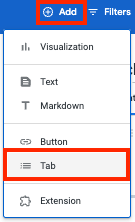
To add a tab to a dashboard, open the dashboard and switch to edit mode. Select the + Add button in the top navigation and select the Tabs option. Once a tab has been created, tiles can be added directly to the tab using the + Add button, or queries can be saved directly to specific tabs.
Deleting Tabs
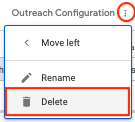
To delete a tab, open the tabbed dashboard and switch to edit mode. Select the three-dot menu for a tab, then select the Delete option. In the Delete tab? dialog, click Delete to confirm the action. You cannot restore a deleted tab.
Duplicating Tabs
At this time, tabs cannot be duplicated. Once Looker is upgraded to Looker 26.8 or later, tabs will be able to be duplicated through the tab’s three-dot menu by selecting the Duplicate option.
Editing Tabs
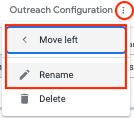
Within a tab’s three-dot selection menu when in Edit mode, the tab can be renamed, and the tab order can be rearranged. The tab order can also be rearranged by dragging and dropping the tab. Beyond that, configuring content within a tab functions in essentially the same manner as past dashboard development.
Filtering Tabs
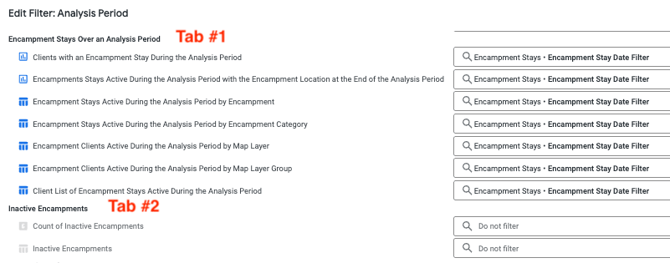
Dashboard filters can be configured to apply to individual tabs and/or multiple tabs at once. The same dimension can be configured as multiple separate dashboard filters, each with a unique filter configuration, as long as each filter has a different name. For example, this allows different tabs to be filtered for different time periods, if desired.
Moving Tiles Between Tabs
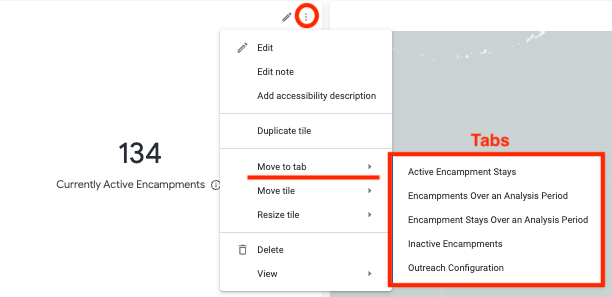
Once a query has been saved to a tab, it can be moved to a new tab by selecting the three-dot menu for the tile in Edit mode and selecting the Move to tab option.
Downloading Tabbed Dashboards
A tabbed dashboard is downloaded in the same manner as a normal dashboard through the dashboard’s three-dot menu. Tabbed dashboards can currently be downloaded as either a PDF or a zipped CSV. All tabs will appear in the same PDF, organized under a content header labeled with the tab name.
Once upgraded to Looker 26.8 or later, individual tabs or a set of tabs can be downloaded. Take caution when downloading a full tabbed dashboard, as larger dashboards can take a long time to process.
Scheduling Tabbed Dashboards
A tabbed dashboard is scheduled in the same manner as a normal dashboard through the dashboard’s three-dot menu. Tabbed dashboards can currently be scheduled to be distributed as a PDF, Zipped CSV, or PNG visualization. All tabs will appear in a single PDF/PNG, organized under a content header labeled with the tab name.
Once upgraded to Looker 26.8 or later, individual tabs or sets of tabs can be scheduled. Take caution when scheduling a full tabbed dashboard, as larger dashboards can take a long time to process.
Published: 08/14/2026