
Table of Contents
Overview
Area Median Income (AMI) is a metric calculated annually by the U.S. Department of Housing and Urban Development (HUD) to determine the income eligibility requirements for federal housing programs. In Clarity Human Services, AMI can be used as an eligibility criterion.
AMI data must first be uploaded into Clarity Human Services by a system administrator.
Obtaining the AMI Data File
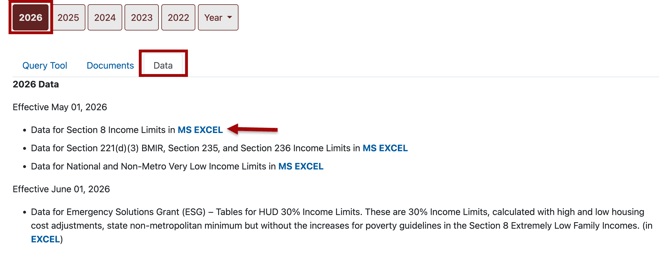
To obtain the AMI data file, navigate to the HUD Income Limits dataset page.
Click the MS EXCEL link on the first bullet point (Data for Section 8 Income Limits in MS EXCEL) to download the file to your computer.
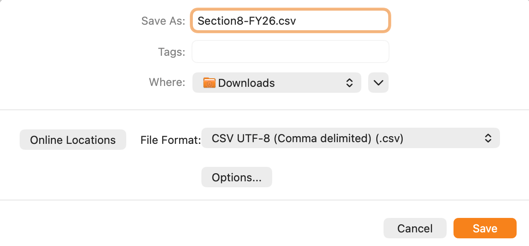
Once the file is downloaded, open the file and remove all inapplicable County information. Be sure to save the File Format as a CSV UTR-8 (Comma-delimited) (.csv) or CSV file before uploading to Clarity Human Services.
Uploading AMI to Clarity Human Services
Click the launchpad, then navigate to SETUP > SETTINGS > System Variables > Area Median Incomes.
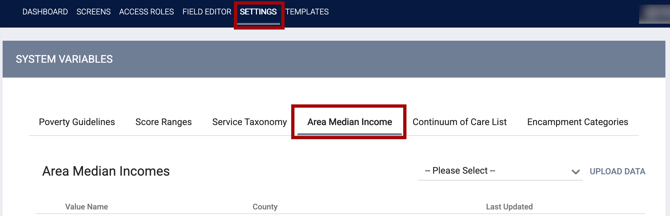
You can choose one state and upload data for that state, or leave the selection set to Please Select.

Note: If you choose to upload data for just one state, remember to remove all other data from the file before uploading.
Once you have either made a state selection or left the selection as Please Select, click UPLOAD DATA to upload.
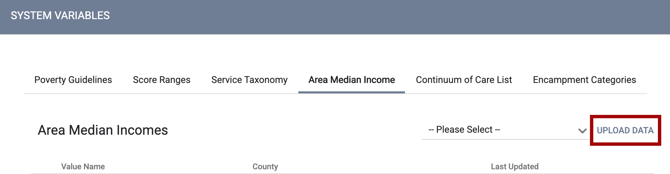
This will open the UPLOAD AREA MEDIAN INCOMES DATA FROM CSV section.
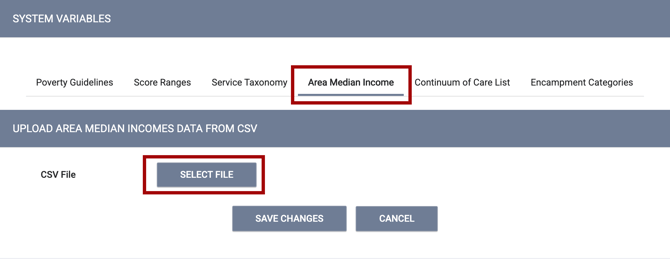
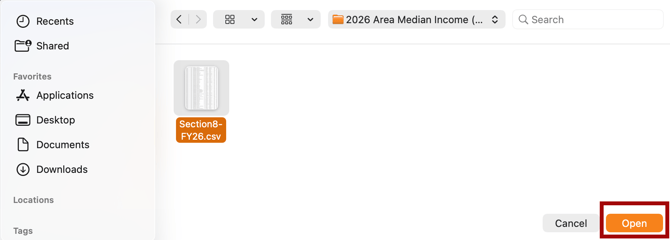
Click SELECT FILE, locate the file you just saved on your computer, select it, and click Open.
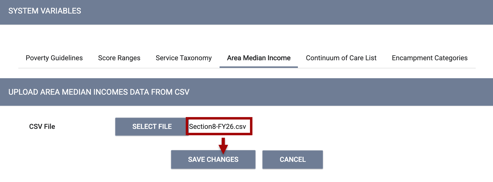
Your CSV file will now show. Click SAVE CHANGES.
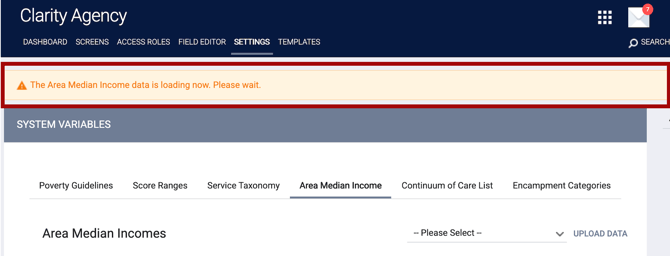
A dialog box will appear at the top of the screen, indicating that the upload is processing, and will remain until the upload is complete. Navigating away from the page will not interrupt this process. The dialog box will remain open until the upload process completes.
Note: The system rounds fractional numbers to 2 decimal places (e.g., if the amount in the file is 12000.456, the system rounds up to 12000.46).
AMI Calculations
By default, the HUD dataset includes limits for households from 1 to 8 members. Files uploaded to Clarity Human Services must, at a minimum, have values for households with 1 to 8 members to be accepted. Once you upload the file, the system automatically calculates household limits from 9 to 25 members, increasing the limit by 8% for each additional household member, based on the value for a 4-person household. This calculation does not include rounding (aside from fractional rounding).
Alternatively, you may input values manually in the CSV file before uploading. The system will calculate missing values starting with the first missing value by adding 8% for each additional household member, based on the value for a 4-person household.
Editing AMI Data
You can view and edit AMI data by clicking the Edit icon.
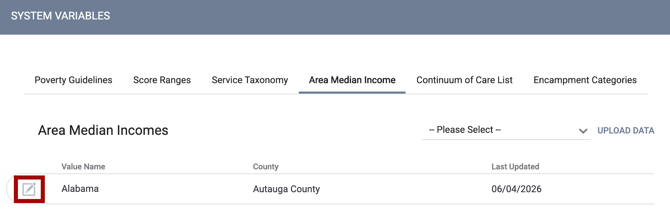
This will display the EDIT AREA MEDIAN INCOMES section, broken up into 30% of Median Income, Low-Income, and Very Low-Income sections.
You can manually edit values by entering a new amount and clicking SAVE CHANGES.

You can also use the Recalculate functionality, which recalculates values for households of 5-25 members based on the value for a 4-person household.

When you click the RECALCULATE button, the following pop-up appears:
“All AMI values entered for households greater than 4 persons will be automatically recalculated. This calculation is based on an additional 8 percent calculation of the 4-person limit. This action cannot be undone. Please confirm.”
Updated: 06/12/2026