
Table of Contents
Report Purpose and Summary
The Staff Details report provides a comprehensive list of staff members with agency access, including key information such as username, access role, email, phone number, and status. The report allows you to review active, inactive, locked, and deleted staff records, making it useful for staff administration, audits, and access reviews.
Running the Report
Report Location
This report is found in the following sections of the Report Library:
- Agency level - [STFF-107] Staff Details Report – Agency Management folder
- Admin level - [STFF-107-AD] Staff Details Report - Administrator Reports folder
Who Can Run the Report
While anyone can generate the agency version of the report, the data returned will reflect the user's access permissions and current sharing configurations. The admin version is restricted to system administrators.
Parameter Options
Below are the parameters required for the Staff Details Report.
| Parameter | Description |
| Staff Home Agency Status |
Select which agency status(es) to include.
|
| Staff Access Agency(-es) |
Select which access agency(-ies) to include.
Note: Displays all agencies to which you have access (your home agency plus any additional agency access). |
| Staff Status(es) |
Select which staff status(es) to include.
Note: Staff member options in the Staff Status(es) parameter utilize asterisks to denote inactive () and deleted (**) staff. These characters appear throughout the report to flag the status of those staff members. |
| Report Output Format |
Select the output format:
Note: If the report contains more than 20,000 rows, the Report Output Format will be automatically changed to CSV. |
Additional Administrator Parameters
| Parameter | Description |
| Agency CoC | Select the Continuum of Care (CoC) to filter available agencies. |
Note: This report reflects the current state of staff records at the time it is run. There is no date range parameter available for filtering by time period.
Report Details
The report displays a detailed table of staff members organized by agency. Each agency section includes individual staff records and a total count row.
Staff Details Table
The Staff Details Table is organized first by agency, then by staff status and alphabetically by name within each agency. The following columns are included:
| Column | Description |
| Staff Name | Last Name, First Name format. Asterisks denote staff status: * = Inactive, ** = Deleted. |
| User Name | The staff member's login username. |
| Role | The staff member's assigned access role. A dash (-) is displayed if a deleted staff member has no role. |
| The staff member's email address. | |
| Phone Number | The staff member's phone number and extension (Ext.), if applicable. Extension appears on a new line within the cell when present. |
| Status | The staff member's current status: Active, Inactive, Locked, or Deleted. |
| Created Date | The date and time the staff record was created (format: MM/DD/YYYY H:MM AM/PM). |
| Last Updated Date | The date and time the staff record was last updated (format: MM/DD/YYYY H:MM AM/PM). |
| Count of Additional Agencies | The number of additional agencies to which the staff member has access beyond their home agency. |
Note: For long text values (such as emails, usernames, and roles), spaces are inserted at intervals within the text to allow line breaks and prevent text overlap in the report output. If you copy a value directly from the report, it may contain extra spaces that should be removed before use.
Table Organization
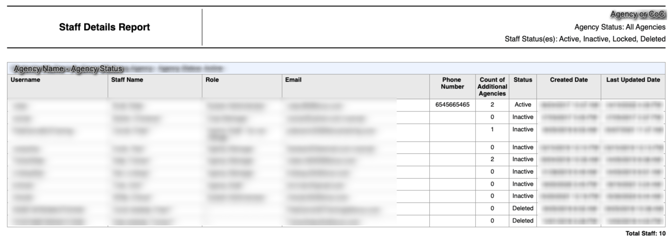
Each agency section is preceded by a header that displays: Agency Name - Agency Status: {Status}.
Tables are organized with the agency running the report listed first, followed by all other selected agencies alphabetically by Agency Name. Active agencies are displayed first (alphabetically), followed by inactive agencies (alphabetically).
Staff within each agency are sorted by Status (Active, Inactive, Locked, then Deleted), then alphabetically by Staff Name (Last Name, First Name).
Note: When this report is run for multiple agencies, staff members will be displayed under their home agency.
Totals are available at the bottom of each agency section, displaying the total count of staff members listed for that agency based on your selected parameters.
If the selected parameters do not return staff, agencies without returned data will be listed in the Agencies with No Data to Display table – including Agency Name and Agency Status.
Note: This section appears when a selected agency has no staff matching your chosen Staff Status(es). It does not necessarily mean the agency has no staff at all. For example, if only "Locked" is selected and an agency has no locked staff, that agency will appear in this section even if it has active or inactive staff.
Drilldown Functionality
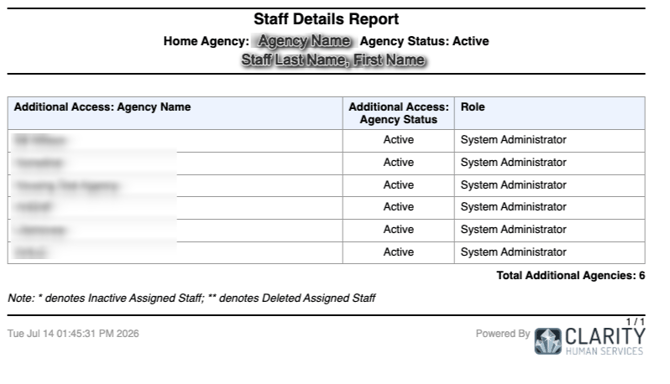
The Web Page Report Output Format includes drilldown functionality. Clicking the Count of Additional Agencies value for a staff member will expand a detail view showing the agencies to which that staff member has additional access.
The drilldown table displays the following information:
| Column | Description |
| Additional Access: Agency Name | The number of additional agencies to which the staff member has access beyond their home agency. |
| Additional Access: Agency Status | The number of additional agencies to which the staff member has access beyond their home agency. |
Active agencies are listed first (alphabetically), followed by inactive agencies (alphabetically). A Total Additional Agencies: # row is included in the drilldown to allow easy comparison with the count displayed in the main report table.
Published: 07/27/2026