
Table of Contents
- Overview
- Where Restore Deleted Data is Available
- Restore Deleted Data
- Deleting a Client Record
- Automatic Associated Data Restoration
- Audit Log
- Additional Resources
Overview
System administrators and staff members with an access role that includes the Restore Deleted Data access right can restore deleted data in a client's record.
Where Restore Deleted Data Is Available
The Restore Deleted Data option is available in the following workspaces:
- Clients workspace
- Client-level workspaces: Profile, Privacy, History, Programs, Services, Assessments, Notes, Alerts, Files, Forms, Contact, Location, Referrals, and Restrictions
- Program enrollment workspaces: Services, Events, and Forms
- Referrals workspaces: Incoming Referrals, Community Queue, and Outgoing Referrals
Restore Deleted Data
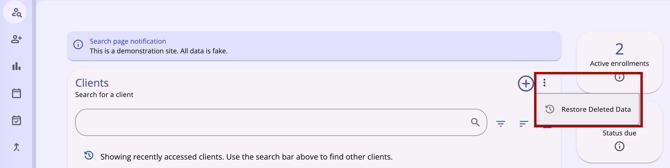
In the workspace where data has been deleted, click Restore Deleted Data in the Action Menu (⋮) to the right of the Add (+) icon in the screen header.

The Restore Deleted Data option appears only when the workspace has at least one deleted record that can be restored. If there is nothing to restore and no other options are available, the Action Menu does not appear.
When selected, the Restore Deleted Data modal appears on the right side of the screen.
The modal has up to two sections. The [Record Type] History section lists deleted records that can be restored. Its columns are:
- [Record Type]: The name of the record. For example, the column is titled Service for services and Note for notes.
- Date Added: The original date the record was added.
- Date Deleted: The date of the most recent deletion. If a record was deleted, restored, and deleted again, this shows the latest deletion date.
- Details: Additional information about the record. The information varies by record type.
The Restore button is not available until you select at least one record. To close the modal without restoring anything, click Cancel or the X in the upper right corner of the modal.
Users can select records by clicking the checkbox to the left of the desired records, or select/unselect all records using the checkbox in the header row.
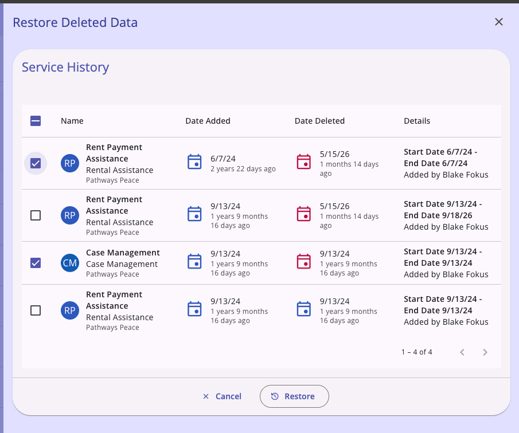
When ready, click the Restore option. After the restore completes, the panel closes, and the restored records appear on the screen without requiring a page refresh.
Unavailable for Manual Restoration
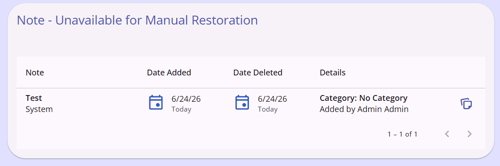
In the Restore Deleted Data modal, some deleted data may not be recoverable with this functionality. When that is the case, that data is listed under a [Record Type] - Unavailable for Manual Restoration section of the modal. This section is read only and there is no Cancel or Restore option associated with this data.
Deleting a Client Record
Before deleting a client record, determine whether client deletion is allowed or the best option to maintain data quality. If you decide to delete a client record, a best practice is to manually delete all of the client’s records first.
Users with the Delete Any Client access right can delete a client record in either of these ways:
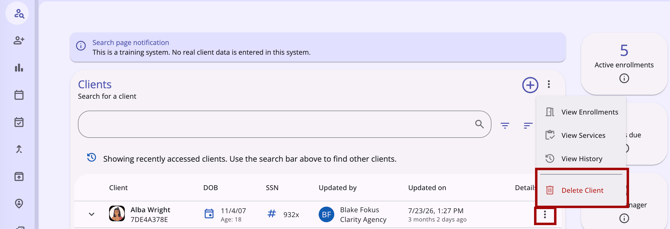
- In the Clients workspace, click the Action Menu (⋮) on the client’s row and select Delete Client.
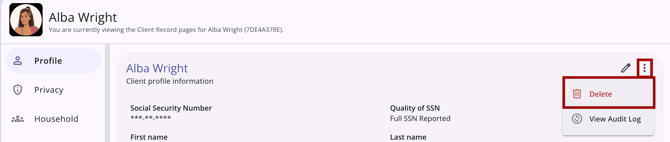
- In the client’s Profile workspace, click the Action Menu (⋮) and select Delete.
A confirmation message appears. Click Delete to delete the record or Cancel to keep it.
A deleted client record can be restored using the Restore Deleted Data option from the Action Menu in the Clients workspace.
Automatic Associated Data Restoration
When a deleted client record or program enrollment is restored, Clarity also restores associated sub-records that were deleted at the same time as the parent record; for example, Notes records are restored when their related Program Enrollment record is restored.
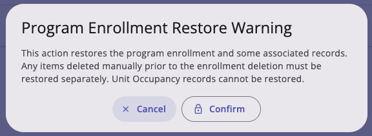
If the system detects one or more associated sub-records were deleted before the parent deletion (and therefore will not be restored as part of this parent restore), the system displays a warning before completing the restore with options to Confirm or Cancel.
- Client restore warning text: “This action restores the client and some associated records. Any items deleted manually before the client is deleted must be restored separately. Unit Occupancy records cannot be restored.”
- Program enrollment restore warning text: “This action restores the program enrollment and some associated records. Any items deleted manually before the enrollment deletion must be restored separately. Unit Occupancy records cannot be restored.”
Records that were deleted separately before the parent record was deleted must be restored separately, if they are eligible for restoration.
Note: The Restore Deleted Data function does not apply to Unit Occupancy records.
Audit Log
Audit Logs throughout the system are available to System Administrators with the Audit Log access right.
Click the Action Menu icon, then select View Audit Log to open the Audit Log to display the log of restored items. The Audit Log includes the user's name and the ID of the user's agency that restored the data.
Additional Resources
Updated: 10/26/2026