
This article is for the new Clarity interface. Screenshots and descriptions will be updated as features are released. For the current interface article, see How Do I Manage Program Goals?
Table of Contents
Video Resources
Click play for a brief overview:
Overview
Program Goals allow staff members to track whether a client has accomplished a goal within an enrollment period based on demographic, service, or time-based data. To use Program Goals, they must first be enabled for the program.
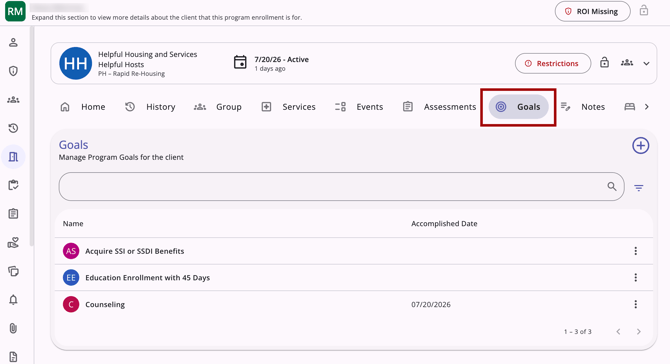
Users can view, add, and delete program goals.
Getting Started
To work with Program Goals, go to the client record Programs tab and click the applicable enrollment. Next, click the Goals tab within the enrollment.
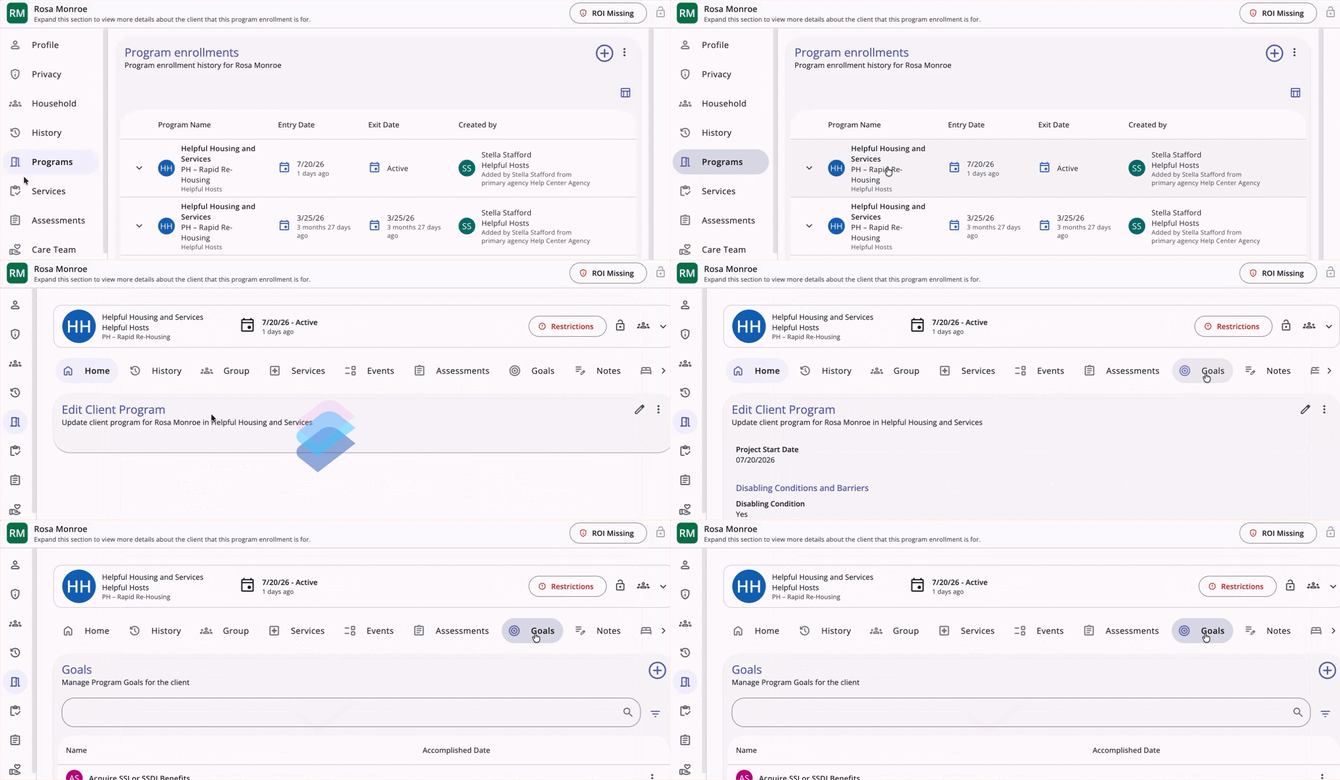
Viewing Program Goals
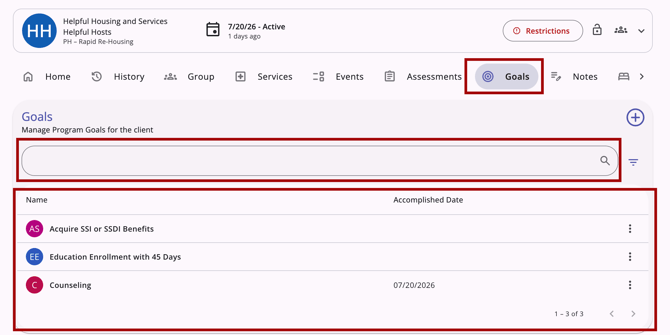
The Goals tab is visible and accessible within a client's program enrollment. All program goals are displayed in a table:
- Active goals (goals without an Accomplished Date) appear at the top of the table.
- Inactive goals (goals with an Accomplished Date) appear at the bottom of the table in descending order by Accomplished Date.
A search bar at the top of the table allows users to type a goal name to filter the goal list.
Note: If a program has Default Goals configured, those goals are automatically added to the client's enrollment when the enrollment is created and appear on the Goals list.
Automatic Goal Recalculation
All active, unaccomplished goals automatically recalculate upon page load. The system only recalculates goals that have not yet been achieved and do not have an Accomplished Date populated.
Adding a Program Goal
At the top right of the page, an Add (+) icon lets you add a new goal. When the Add (+) icon on the Goals tab is clicked, an Add a program goal modal opens on the right side of the screen.
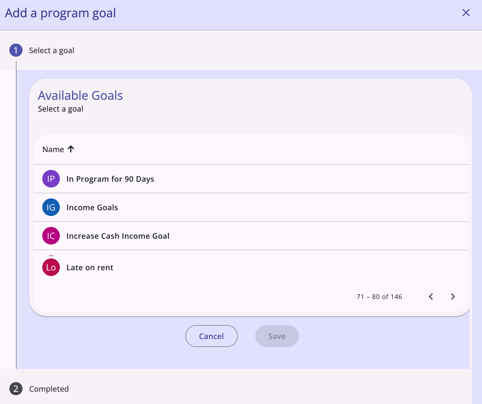
On Step 1 of the modal, the user selects from a list of goals configured for the program. Only one goal can be selected at a time.
After selecting a goal, click Save. Once the process is complete, the user will return to the Goals list and see the newly added goal.
Deleting a Program Goal
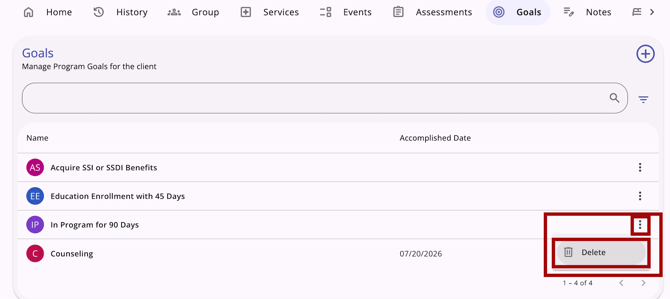
At the far right of each goal row, an Action Menu (kebab) icon displays.
Users with the appropriate access rights can click the Action Menu (kebab) icon, then click the Delete option to delete the goal.
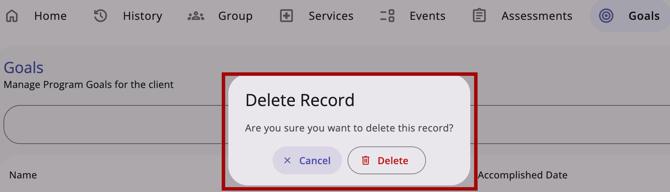
A confirmation pop-up will appear; click Delete to remove the record or Cancel to return to the Goals tab without deleting it.
Accomplishing Goals
The accomplishment of a goal can be documented in three different ways, depending on the Measure assigned to the goal in the Goal Template:
-
Demographic-Based: through a program status assessment
-
Service-Based: by providing a program service
-
Time-Based: after a specified length of time passes
For more information on how goal measures are established, see Goal Templates. If you have questions about the criteria for achieving a specific goal, check with your local system administrator.
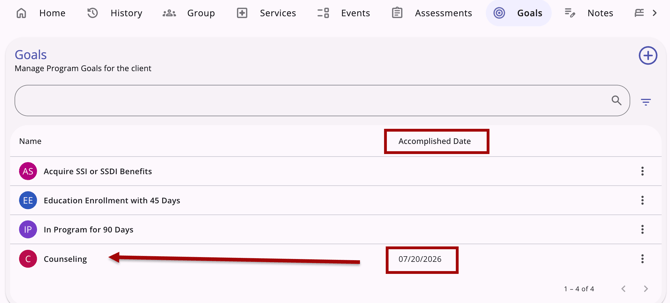
A program goal that has been accomplished displays the Accomplished Date in the Accomplished Date column.
Service-Based Goal Accomplished Dates
A service-based goal's Accomplished Date reflects when the service was actually delivered to the client, rather than the date the service was entered in the system.
- When a service linked to a goal is marked as completed, the goal's Accomplished Date automatically inherits the service's Date Provided, not the date the user records the service in the system. The system does not use the system timestamp (Created Date) for this calculation.
- If a service date is backdated or retroactively edited, the linked goal's Accomplished Date automatically updates to match the new delivery date.
Updated: 08/26/2026