
Table of Contents
Overview
When a HUD-required Annual Assessment is due, email notifications are sent to any staff member assigned to the enrollment to notify them that the due date is approaching.
Visual warnings, with tooltip notifications, also appear on the program enrollment record when a client’s Annual Assessment is approaching its due date or is overdue.
Who Gets Notifications?
Users receive Assessment Due Warnings when they are the designated Assigned Staff member for the program enrollment, and they have the Assessment Due Warning setting toggled on in their Account Settings. You are automatically assigned to an enrollment when you create it.
The assigned staff member can also be selected manually. You can see whether you are the assigned staff member for an enrollment by opening an enrollment and viewing the Assigned Staff tab, or by checking your Caseload Management widgets.
What If I'm Not Receiving Notifications?
First, ensure that you're the assigned staff for the enrollment and that the Assessment Due Warning setting is toggled on in your Account Settings. The Assessment Due Warning setting for an enrollment is established when the enrollment is first created.
You can change the Assessment Due Warning setting for your caseload in your Account Settings, but this change will only affect enrollments you are assigned to after the change is made. Current client records will remain on the original notification schedule until the end of their enrollments.
To change the Assessment Due Warning setting for your caseload:
- Click your avatar or initials in the top right corner and select Account Settings.
- On the Account Settings tab, click the Edit (pencil) icon.
- Under Preferences, turn on Assessment Due Warning, and a Warning Period setting will appear. Select how far in advance of the due date you want to be notified: 1 Day (default), 2 Days, 5 Days, 1 Week, 2 Weeks, or 30 Days.
- Click Save.
Notes:
-
If you create a program enrollment for a client while the Assessment Due Warning setting is toggled Off in your Account Settings, the program enrollment Assessment Due Warning will default to Off. As long as you are the assigned staff for that particular program enrollment for that one client, you will not receive any Assessment Due Warnings for that client's program enrollment, even if you toggle on the Assessment Due Warning after you create the enrollment.
- If the assigned staff member has the Assessment Due Warning setting disabled in their Account Settings, the notification will go to the first staff member within that agency with the Agency Manager role type.
Warning Visibility
When an Annual Assessment is due, an Annual Assessment Due warning appears on the program's Enrollment page and on the program enrollment's Assessments workspace.
Program Enrollments
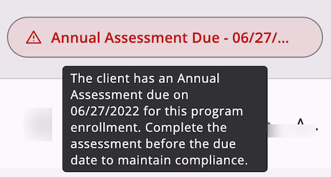
When an Annual Assessment is due, an Annual Assessment Due warning appears at the top of the page in the Information box on a client’s program enrollment page in the new Clarity interface.

The alert appears 10 days before the assessment due date (unless the assessment has already been completed) and remains visible until the assessment is completed.
The alert reads:
“Annual Assessment Due - [Month/Day/Year]”
Note: If the Case Status field within the program's Program Template is set to Do Not Use, the system will not display this alert.
Color-coding is used to indicate urgency:
- Alert Icon (Orange): Appears when the assessment is at the exact due date.
- Alert Icon (Red): Appears when the assessment is overdue (past the due date) and remains incomplete.
Hover over the alert to see a detailed compliance message:
"The client has an Annual Assessment due for this program enrollment. Complete the assessment before the due date to maintain compliance."
Assessments Workspace
Within a specific program enrollment, the Assessments workspace includes additional tracking and configuration options.
Program Assessments Header
Under the Program assessments header on the program's Assessments workspace, a status message is displayed:
“Assessment due [Case Status Value].”

The Case Status value is set by a system administrator and indicates how often the Annual Assessment should be completed. The typical Case Status Value selected is Every Year.
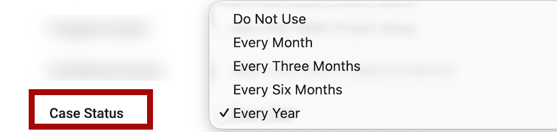
If the Case Status Value is set to Do Not Use, the system will not display this message.
Managing Warning Notifications
Users can enable or disable Assessment Due Warning notifications.

- Navigate to the Assessments workspace.
- Click the Action Menu (kebab) Icon located to the right of the Add an Assessment button.
- Select Assessment Due Notifications in the Action Menu.
- A card appears with the option to Enable Assessment Due Notifications.
- Use the On/Off toggle to enable or disable notifications.
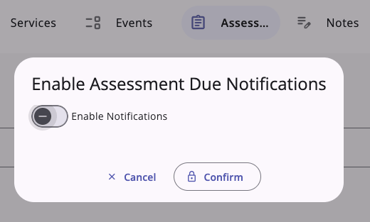
If you change the toggle and click Confirm, the system will display a warning:
"Warning: Changing this setting will disable/enable warnings for all case managers assigned to this program enrollment. Do you wish to continue?"
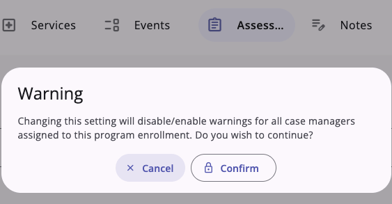
- Cancel: Returns you to the card without saving changes.
- Confirm: Saves the changes for all Assigned Staff and returns you to the program’s Assessments workspace.
Notes:
- If the Assessment Due Warning setting is toggled Off for the enrollment but On in the staff member's Account Settings, the notification will not be sent to the staff member, because the Assessment Due Warning setting in the enrollment overrides the Assessment Due Warning setting in Account Settings.
- The display of the red Assessment Due - <due date> visual warning on the enrollment is independent of the Assessment Due Warning notifications that are sent to staff members. The visual warning appears in the enrollment 10 days before the Annual Assessment due date (unless the assessment has already been completed) and remains until the assessment is completed.
Updated: 10/22/2026