
This article is for the new Clarity interface. Screenshots and descriptions will be updated as features are released.
Table of Contents
Overview
The Customer Portal provides a secure, efficient way for clients and providers to communicate.
The Client Portal tab and a Client Portal card are available in the new Clarity interface for users who meet all of the following conditions:
- The Customer Portal is enabled at both the instance and agency level.
- The user has the Customer Portal Client Management permission enabled for their access role.
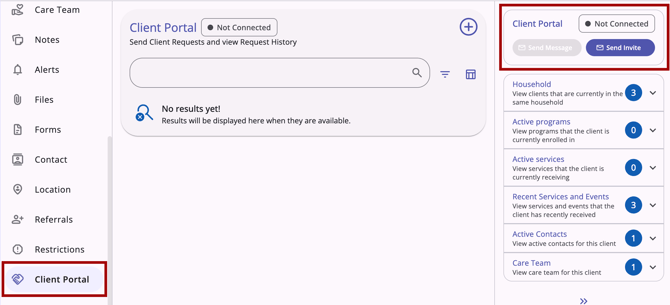
Client Portal Tab
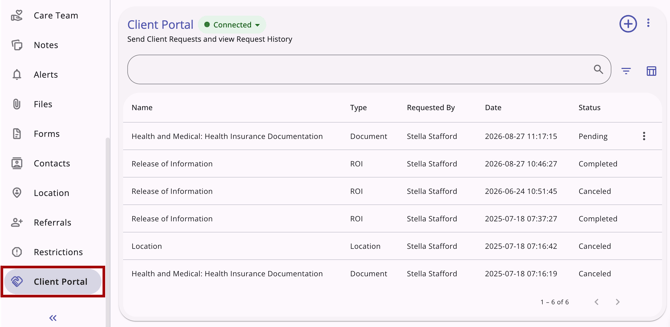
The Client Portal tab includes the client's portal status and the full history of the client's portal requests.
Portal Status
The client's portal status displays in the top-left corner of the page, next to the Client Portal title.
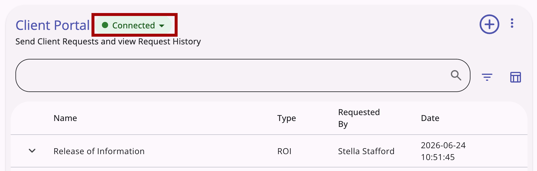
The status badge reflects one of three states:
- Connected: The client has set up their portal, and it is actively connected.
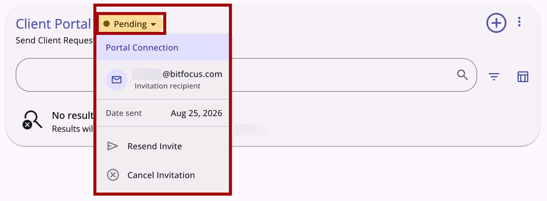
- Pending: An invitation has been sent to the client but has not yet been accepted.
- Not Connected: A portal invitation was never sent, or the portal connection was connected and has since been disconnected.
Available Actions by Status
The actions available on the Client Portal tab vary by portal status.
Connected Status
The Send Message and Send Request actions are available from the Add (+) icon.

An additional Action Menu (kebab) icon appears in the top-right corner with the Disconnect and View Audit Log options.
The Disconnect option is kept in a separate menu to prevent users from accidentally disconnecting accounts. The View Audit Log option is only available to system administrators with the Audit Log access right.

Pending Status
Clicking the Add (+) icon provides the Resend Invite or Cancel Invite options.

Clicking the dropdown arrow on the Pending status badge also provides the Resend Invite or Cancel Invite options.
Not Connected Status
Clicking the Add (+) icon provides only the Send Invite option.

Request History
The Client Portal page displays the full history of all Client Portal requests for the client. The history is searchable by Name or Type and can be filtered by Type or Requested By. A column selector allows users to customize which columns are shown or hidden.
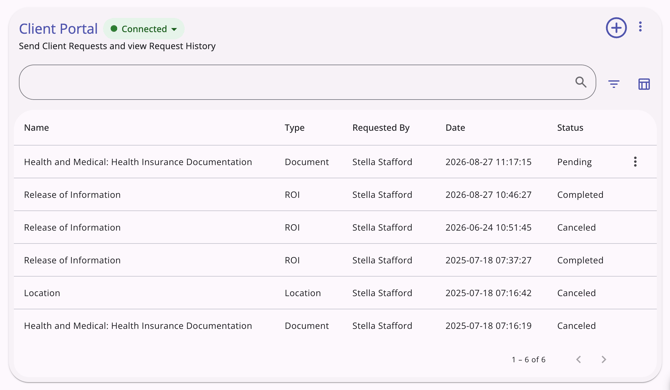
The following request types are included:
- Assessments requests
- Files requests
- Location requests
- Release of Information (ROI) requests
History table columns:
- Name: The name of the item requested.
- Type: The type of request.
- Requested By: The staff member who initiated the action.
- Date: The date the action was performed.
- Status: The current state of the request: Pending, Completed, or Canceled.
The history is searchable by name or type and can be filtered by Type or Requested By. A column selector allows users to customize which columns are shown or hidden.
Canceling a pending request
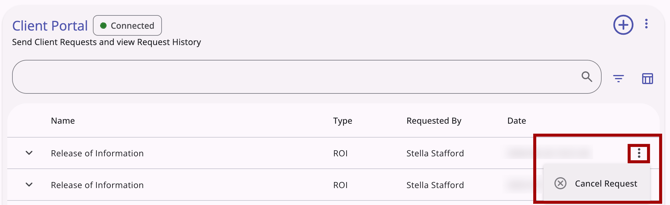
A sent request can be canceled by clicking the Action Menu icon next to the pending request in the Request History section and selecting Cancel Request.
Action Menu Options
The Action Menu icon next to the Add (+) icon includes additional options.
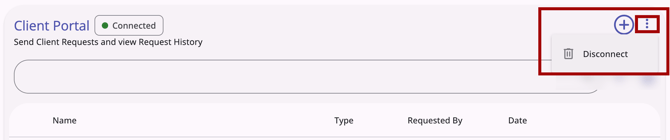
Users can select Disconnect to remove clients from the Customer Portal.
Identifying Client-Submitted Records
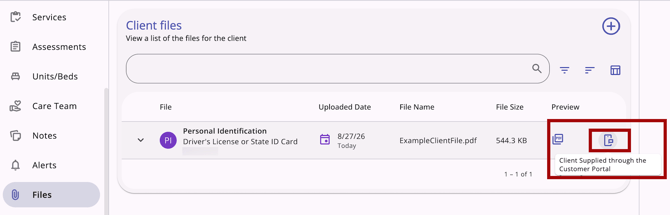
Case Managers can see which files, assessments, or location records the client submitted through the Portal on the associated tab.
On the client's Files, Assessments, and Location tabs, a record submitted by the client through the Customer Portal displays a client-supplied icon, right-aligned in the row. Hovering over the icon displays the tooltip: "Client Supplied through the Customer Portal."
Client Portal Card
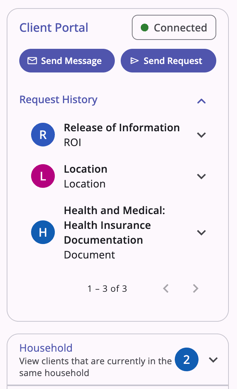
A Client Portal card is available on the client profile sidebar, providing quick access to portal history, invite actions, and messaging.
Portal Status
The Client Portal card displays one of three statuses, which update dynamically without requiring a page reload:
- Not Connected: The Send Invite button is available.
- Pending: Displayed after an invite is sent. The button updates to Resend Invite, and Send Message remains disabled. Clicking the Invite Pending status indicator opens a pop-up with the option to cancel the pending invitation or resend it to the original email address provided.
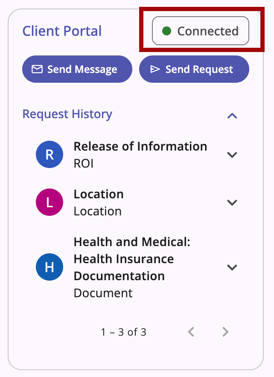
- Connected: Displayed automatically with a green visual indicator once the client accepts their invite and sets up their portal. The Send Invite / Resend Invite button is no longer shown, and the Send Message and Send Request buttons are enabled.
Request History
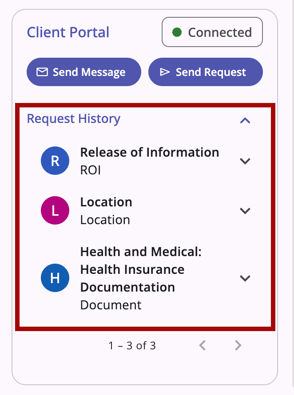
When the client's status is Connected, a Request History section appears in the sidebar, displaying prior requests with request type, status, requester, and date. The list paginates after 5 records.
Client Portal Card Action Menu
The Client Portal card's action menu displays two options: Disconnect and View Audit Log.
- Disconnect: Allows the Case Manager to disconnect the client from the Customer Portal.
- View Audit Log: Allows the Case Manager to review the history of invite, message, request, and connection actions for the client.
- The View Audit Log option is hidden from the kebab menu for users who do not have the Audit Log access right enabled.
- In addition to the standard From Values, To Values, Changed By, and Date columns, the audit log also displays Type and Action columns.
Sending a Message
The Send Message action is available in both the Client Portal page and the Client Portal card when the client's status is Connected.
The workflow below is for sending a message to an individual client. To send messages to multiple clients at one time, refer to Client Portal Tab: Mass Send/Request.
Client Portal Page
The Send Message button is available by clicking the Add (+) icon on the Client Portal page, then selecting Send Message.

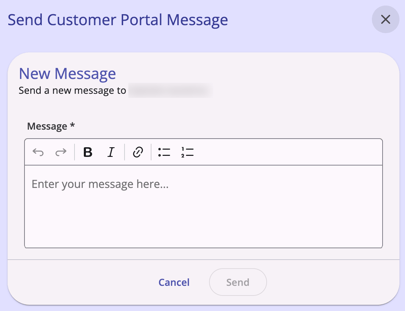
- Selecting Send Message opens the Send Customer Portal Message modal on the right side of the screen with a Message box for composing a message.
- Upon submission, the message is delivered to the client's Client Portal inbox in real time.
- Send Message is disabled and visually greyed out when the client's status is Not Connected or Invite Pending.
Client Portal Card
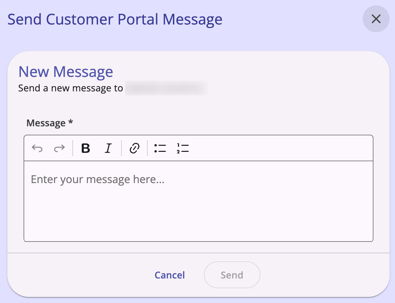
The Send Message button shows on the Client Portal card when the client's status is Connected.
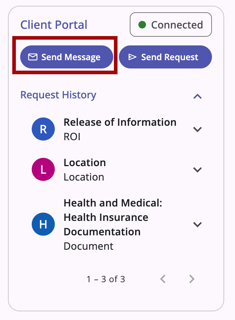
- Clicking the Send Message button opens the Send Customer Portal Message modal on the right side of the screen with a Message box for composing a message.
- Upon submission, the message is delivered to the client's Client Portal inbox in real time.
- Send Message is disabled and visually greyed out when the client's status is Not Connected or Invite Pending.
Viewing and Replying to a Message
Once a message is sent, it appears in the staff member's inbox with the client's name shown as the sender, matching how the client's name displays for any other conversation.
Clicking the message opens it in a read panel, where the full message content and the client's name are visible. To reply, type a response and send it. The reply is delivered to the client's Client Portal inbox in real time, just like a new outgoing message.
For more information, see the The Staff Inbox and Secure Messaging (New Clarity Interface) article.
Note: This applies to both messages a staff member sends and any reply the client sends back; both directions display the client's name and open like any other message.
Turning Off Contact from Clients
If a staff member does not want to receive messages from clients through the Customer Portal, they can turn off the Allow Client-Initiated Contact setting on the Account Settings page. See the Staff Member Account Settings (New Clarity Interface) article for more details.
Note: When this setting is enabled, any client for whom the staff member is assigned as a Care Team member can send them a message.
Sending a Request
The Send Request action is available in both the Client Portal page and the Client Portal card when the client's status is Connected.
The workflow below is for sending a request to an individual client. To send requests to multiple clients at one time, refer to Client Portal Tab: Mass Send/Request.
Client Portal Page
Clicking Send Request opens a sidebar workflow with up to 3 steps. The Send Request button is available by clicking the Add (+) icon on the Client Portal page, then selecting Send Request.

Step 1: Select a Request
The following request types are available:
- Assessments
- Files
- Location
- Release of Information (ROI)
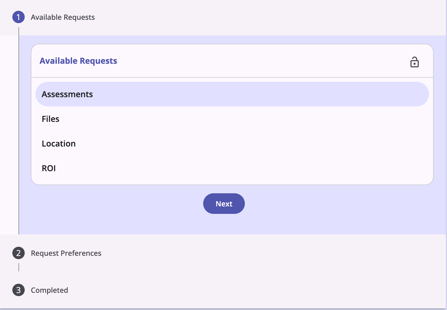
A Lock icon in the top right of the step determines whether the request will be set to private when fulfilled by the client. The icon is set to unlocked by default.
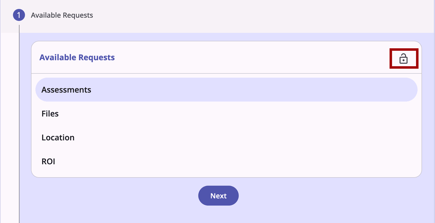
Select the request type, then click Next. You cannot proceed to Step 2 without selecting a request type.
Note: Location and ROI requests do not require Step 2 and proceed directly to Step 3 (Completed).
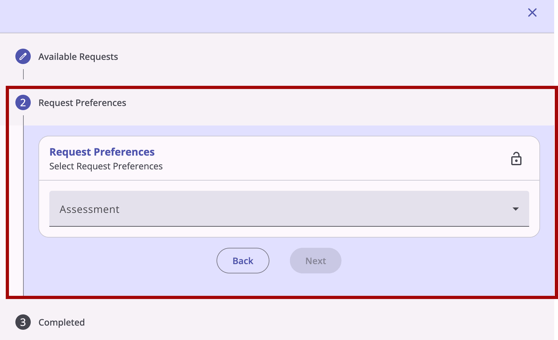
Step 2: Select Request Preferences (Assessments and Documents only)
This step is titled Request Preferences with the subtitle Select Request Preferences.
- Assessment requests: An Assessment dropdown displays assessments that have Enable on Customer Portal toggled on in Setup.
- Document requests: A Category and Predefined Name dropdown are shown. The categories and predefined names are pulled from the active file category/name list configured in Clarity at Setup > File Categories. A Private toggle is also available and is off by default.
Step 3: Completed
Once Available Requests and, where necessary, Request Preferences have been made, complete the request. Step 3 confirms the request has been submitted successfully.
Upon submission, the request appears in the Request History section of both the Client Portal page and the Client Portal card with a status of Pending, along with the request type, requester name, and date.
The modal can be closed or canceled at any step without submitting a request.
Client Portal Card
The Send Request button displays on the Client Portal card for clients with a Connected status.
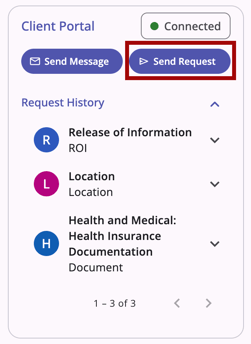
Click the Send Request button to open the workflow. The workflow for the Client Portal card is the same as the workflow for the Client Portal page. Jump to the Client Portal page section for the workflow steps.
Updated: 09/17/2026