
Table of Contents
Overview
The Help & Support chat widget provides users with access to Help Center articles, an AI Chat Agent, and direct support from our Technical Support team within Clarity Human Services.
Chat Widget Setup
The Help & Support chat widget can be enabled or disabled by system administrators. Click Launchpad > Setup > Settings, then toggle on Enable Technical Support Widget.

Chat Widget Use
When the chat widget is enabled, users will see it in the lower-right corner of the screen throughout the new Clarity interface.
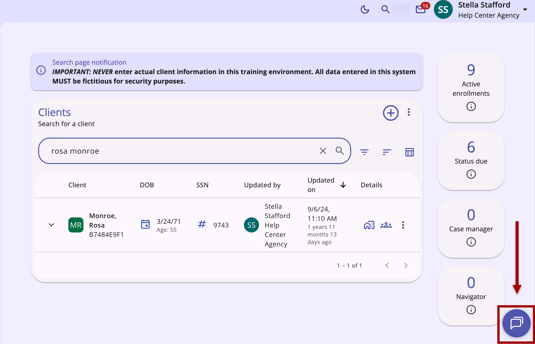
Click anywhere on the chat widget to begin chatting.
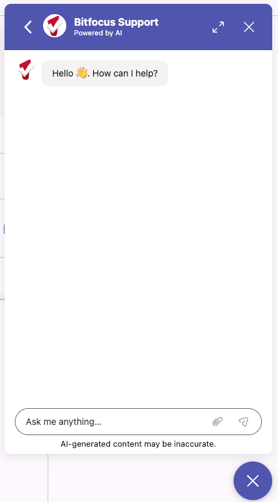
Enter the desired topic in the Ask me anything field. For example, you might search for information on "Pending referrals."
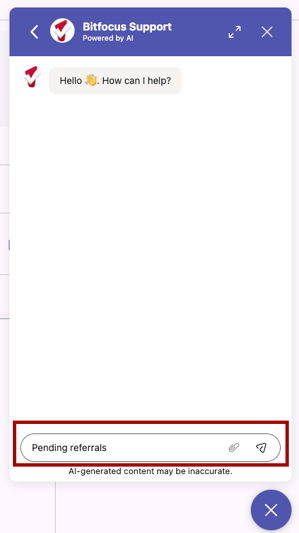
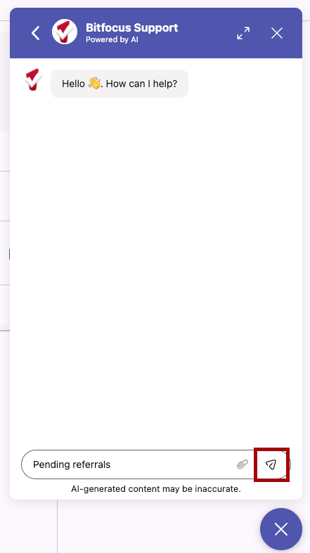
Click the Send icon in the lower right corner.
The chat widget will search for relevant articles in the Help Center and then display a response.
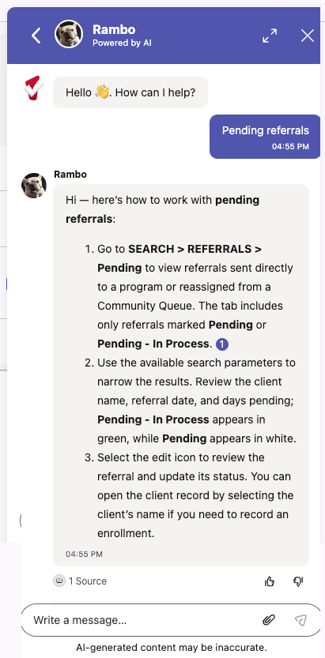
After entering a prompt into the chat widget, the Ask me anything field changes to a Write a message field so you can continue the dialogue.
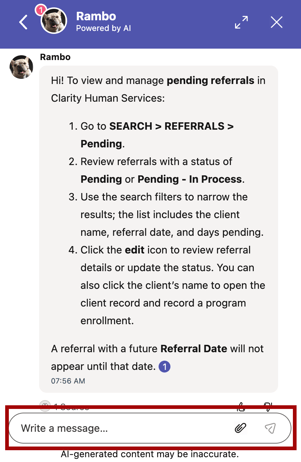
The number of sources used in the response will be shown next to the Knowledge Base icon.
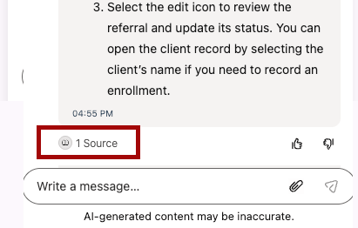
Click the Knowledge Base icon to view the source(s). You can click a Help Center article link to open the associated article or click the X icon to close.
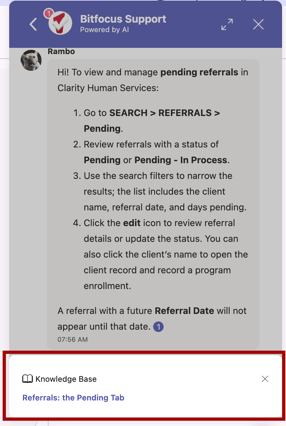
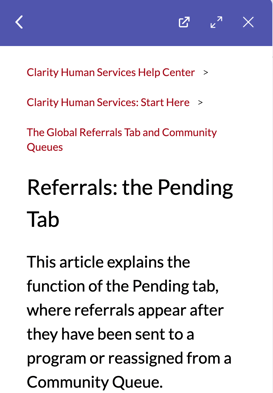
When you click an article link, the article opens within the chat widget.
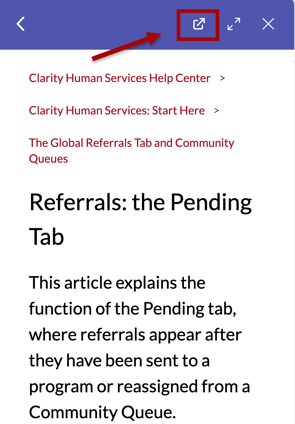
You can click the icon at the top of the chat widget to open the Help Center article in another tab.
If the Help Center has no relevant articles, the widget will respond with "Unfortunately, I couldn't find anything."
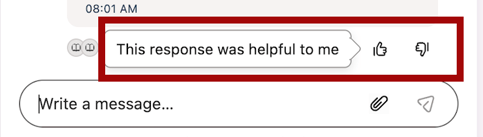
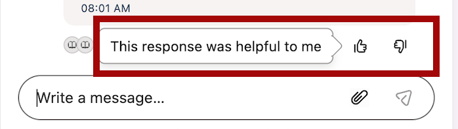
At the bottom of the dialog box, you will see a Thumbs Up icon and a Thumbs Down icon. Hover over the icons for a tooltip.
-
If you click the Thumbs Up icon, the widget will end the chat.
- If you click the Thumbs Down icon, the widget will connect you directly with a Technical Support team member to discuss your question.
Our Technical Support team is typically available Monday-Friday, from 5 am–5 pm PT. If you submit a request outside of that time, our AI Chat Agent is available 24/7 to help answer your questions and guide you to self-service solutions.
Adding Screenshots
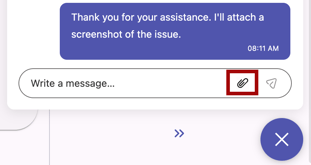
A Paperclip icon is available for uploading screenshots or other helpful documentation when chatting with the Technical Support team.
Ending the Chat
If you click the Thumbs Up icon while using the AI Agent, the widget will end the chat.
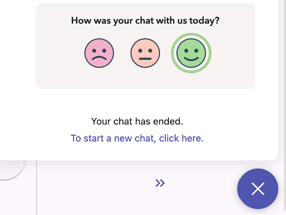
If you are speaking with Technical Support staff, they will confirm with you before ending the chat. You will see a confirmation that your chat has ended, along with an option to start a new chat.
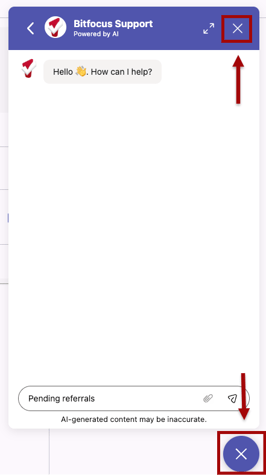
To exit the chat widget, click the X icon in the top right or the X button in the lower right corner of the screen.
Chat History
You can review your chat history in the chat widget. Click the Arrow icon in the upper left corner of the chat widget.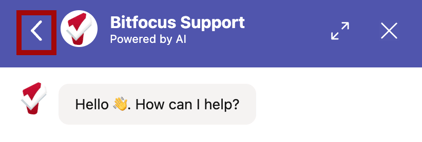
The Chat page shows your previous chats. Click a chat to review its dialogue.
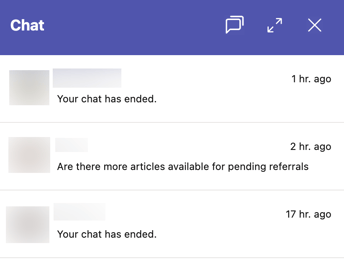 Click the Chat icon to exit the chat history. Or click the X icon to exit the chat widget.

Access the Help Center
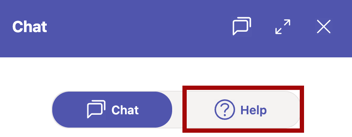
You can browse and search the Help Center from the chat history. Click the Help button to open a Help page.
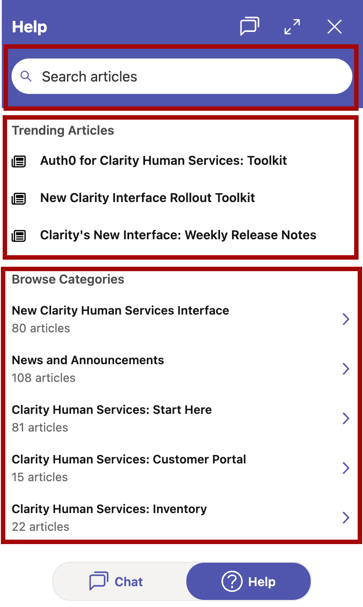
You can Search articles, choose from Trending Articles, or Browse Categories.
Updated: 10/20/2026