
Overview
Clarity Human Services includes a calendar function that allows you to create client appointments. This calendar can be connected to an external calendar application.
Navigating the Calendar
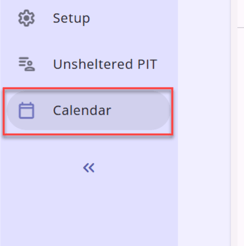
Navigate to your calendar on the global header toolbar. This calendar is personal to the user and is not shared or viewable by other users.
When opened, the calendar displays in the Month view and can be changed to a Week, Day, or List view from the top right of the calendar screen.
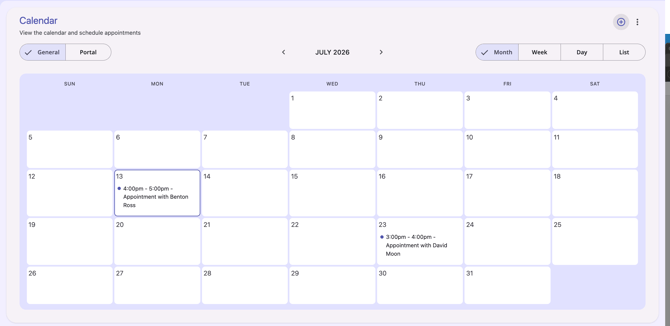
Navigate to previous or next sections of the calendar using the arrow icons at the top of the calendar.

Manage Appointments
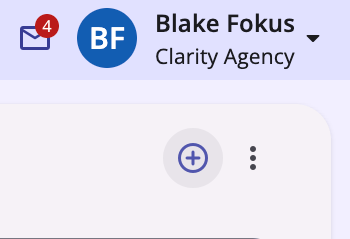
Clicking the plus icon (+) in the top right corner of the calendar open an Add an Appointment side modal.
Fields include:
- Client
- Start On (Date/Time)
- End On (Date/Time
- Location (Optional)
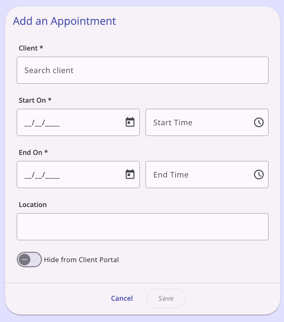
Note: You can use the Location field to record additional information related to the appointment (for example, "Client to bring SSN card").
Once entered and saved, appointments appear on the calendar as time blocked events. Click on the event to view more details.
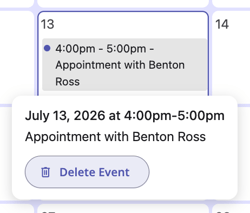
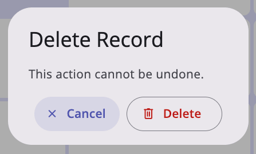
When viewing details, users see a Delete Event option. When clicked a warning pop-up asks users to confirm they want to delete the event with the option to Cancel or Delete.
Subscribing to the Calendar
The Clarity Human Services Calendar is a secure calendar that allows you to keep track of client appointments. To subscribe, click the three-dot kebab menu in the top right of the screen and select Subscribe To iCalendar.
The subscribe feature will hide Personally Identifying Information and use Clarity Unique Identifiers on the outside calendar applications to protect client information.
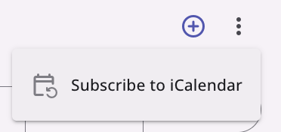
When Subscribe to iCalendar is selected, a dialog box appears, select Open Calendar.app
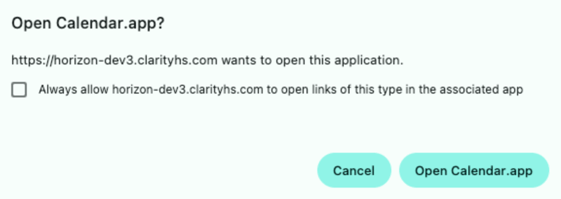
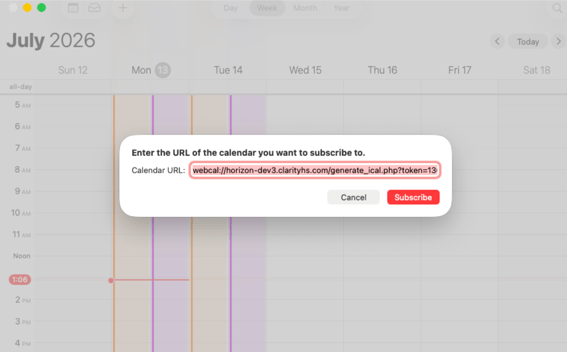
The user will be asked to enter a URL which is already prefilled and click Subscribe.
Published: 07/13/2025